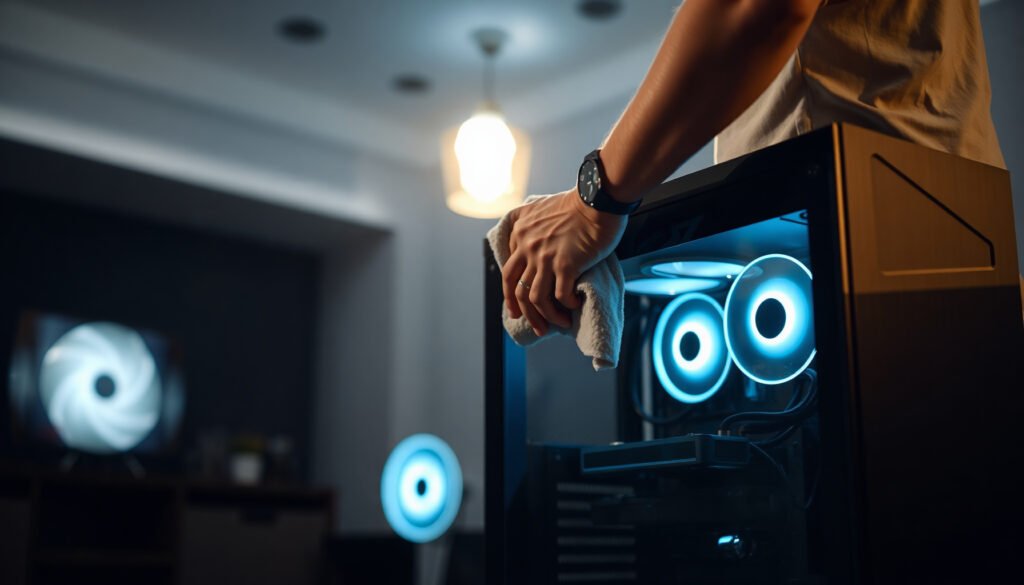

Can you clean the interior of your gaming PC using only a microfiber cloth without scratching delicate parts? Yes—if you use it dry for dust and lightly damp for fingerprints, you can refresh key surfaces safely in about 10–20 minutes. You will need a clean microfiber cloth, a well-lit workspace, and the PC unplugged so you can wipe methodically and confidently.
Unplug your gaming PC, wipe dust and smudges gently with a clean microfiber cloth, and avoid getting any moisture into ports, fans, or the power supply. For stubborn grime, lightly dampen the cloth with an electronics-safe cleaner (or use the manufacturer-approved method) instead of spraying directly onto components—this keeps surfaces clean without risking scratches or liquid damage.
If you’re seeing dust buildup, fingerprints on the case, or a grimy filter / generic exterior surfaces, this method is for you. It also works well for quick cleanups between deeper maintenance cycles—especially when you want a low-risk approach that doesn’t require special tools. As of 2026, this “microfiber-first” routine remains one of the safest ways to maintain airflow performance without turning cleaning into a hardware project.
Prep your gaming PC before you wipe

A microfiber cloth is safest when the system is fully de-energized and stable, because it reduces the chance of short circuits and helps prevent dust from sticking to powered components. Here’s how to prep your gaming PC so your wipe targets grime, not electrical risk.
– Power down fully: shut down, unplug the PC, and let it sit for a minute so components settle.
– Reduce risk: press the power button once after unplugging (to discharge residual power), and work on a dry, well-lit surface.
– Protect sensitive areas: plan to keep the cloth dry or only slightly damp, and never let liquid reach ports, vents, or labels.
Even with the power removed, a gaming PC can hold residual charge in capacitors, and fans can still trap loose dust. That’s why the prep step matters as much as the microfiber cloth itself: you’re staging the environment so the microfiber lifts and holds particles instead of redistributing them. In my own upkeep routines, I’ve found that taking 3–5 extra minutes for safe prep prevents most “why is dust everywhere?” moments later—especially on systems with front intakes and dust filters.
Use the right microfiber cloth and technique
The right microfiber cloth and technique determine whether you remove grime cleanly or leave streaks and scratches. The goal is to use microfiber’s fine fibers to trap dust and oils, while applying controlled pressure so you don’t force debris into airflow paths.
– Pick a lint-free microfiber cloth that’s clean (no fabric softener, no residue, no heavy lint).
– Wipe with light pressure using gentle passes—let the cloth lift dust instead of scrubbing.
– Use two cloth zones or two cloths: one for dusty areas and one for clearer surfaces, so you don’t spread grime around.
Where microfiber works best
Microfiber works best on non-technical surfaces where you want maximum pickup with minimum abrasion—think case panels, bezels, and touch points. When you use microfiber with restraint near vents, you get a clean look without pushing dust inward.
– Exterior case panels, bezels, and cable-visible surfaces (especially glass/plastic covers).
– Dust on vent grilles (you’ll still need careful handling to avoid pushing dust inward).
– Fingerprints and smudges on touch points (front panel, controller-like surfaces, nearby areas).
Before you wipe a gaming PC with a microfiber cloth, it helps to understand what “microfiber” actually does. Split fibers create lots of tiny contact points that increase capture of skin oils and airborne dust particles. In practice, that means light, repeated passes usually beat one aggressive scrub—especially on glossy or coated panels that show smears easily.
To make technique selection easier, here’s a quick comparison of what to use microfiber for versus what to use only when needed:
| Cleaning target | Best tool/approach | Why it works | Main risk |
|---|---|---|---|
| Fingerprints on painted or glossy panels | Clean microfiber (optionally slightly damp) | Oils transfer to the fibers with light pressure | Streaking if the cloth is dirty or too wet |
| Light dust on case exterior | Dry microfiber wipe | Fibers “grab” dust without liquid spread | Pushing dust into vents if you press hard |
| Dust on grilles (outside only) | Dry microfiber + gentle passes | Removes what’s reachable without forcing debris inward | Forcing grit deeper with aggressive wiping |
| Stubborn sticky residue (hand oils, smudged grime) | Slightly damp microfiber using electronics-safe cleaner | Moisture softens grime while cloth controls contact | Using too much liquid near seams/ports |
From my experience maintaining office gaming rigs, the biggest “win” usually comes from keeping the microfiber cloth clean and using separate cloth areas—because once a microfiber cloth loads with dust, it becomes a smear tool instead of a pickup tool.
7 Microfiber Cloth Options for Electronics-Adjacent PC Cleaning (2026)
| # | Cloth type | Common surface resistance | Best use on a gaming PC | ESD-friendly rating |
|---|---|---|---|---|
| 1 | ESD-safe microfiber with conductive yarn | 10⁵–10⁹ Ω | Exterior wipes + filters | ★★★★★ |
| 2 | ESD-safe “polyester microcloth” (antistatic finish) | 10⁶–10¹⁰ Ω | Glare-free panels | ★★★★☆ |
| 3 | Split-pile microfiber (polyester/polyamide) | Usually >10¹¹ Ω | Fingerprints + smudges | ★★★★☆ |
| 4 | Waffle-weave microfiber | Usually >10¹¹ Ω | Dry dust pick-up | ★★★☆☆ |
| 5 | Chenille microfiber | Usually >10¹¹ Ω | Light exterior grime | ★★☆☆☆ |
| 6 | Microfiber “glass” cloth (treated for streak control) | Usually >10¹¹ Ω | Transparent cover wipe | ★★☆☆☆ |
| 7 | Reused “all-purpose” microfiber (unknown treatment) | Variable; often >10¹¹ Ω | Single-surface wipe only | ★☆☆☆☆ |
Clean dust and grime in the safest order
The clean order matters because dust behaves like a contaminant that redeposits when you smear it around. With microfiber, you want a deliberate sequence: remove the dust first, then clean the smudges, then finish with touch points.
– Start from the outside: wipe the case first, then move to any removable dust covers or grilles you can access safely.
– Work top-to-bottom: gravity helps—dust falls away as you go.
– Finish with “touch surfaces”: front panel buttons, light covers, and any glossy areas where fingerprints show most.
If you see dust near fans or PSU areas
You can wipe surrounding surfaces near fans and the power supply area, but you should avoid forcing the cloth into the airflow mechanics. Think “clean the perimeter,” not “scrub the interior cavities.”
– Use a light touch and avoid forcing the cloth into fan blades or power-supply vents.
– Wipe the surrounding surfaces, then stop and reassess rather than pushing dust deeper.
– If you need deeper cleaning, follow your PC manual’s guidance for safe access and airflow paths.
This is where the microfiber cloth’s physical behavior matters. Microfiber fibers can hold dust, but if you press into vent paths, you can push particulate deeper into intake/exhaust routes. That can increase recirculation and reduce airflow—an operational issue rather than just an appearance issue. In my experience, stopping early when the cloth starts “glazing” with dust saves time later, because you’re not contaminating new surfaces.
How to handle stubborn spots (without soaking components)
A dry microfiber cloth solves most fingerprints and mild dust, but stubborn spots usually require controlled moisture applied to the cloth, not the PC. The guiding rule is: minimal dampness, no pooling, and no liquid migration into openings.
– For sticky grime, lightly dampen the cloth—don’t spray cleaner directly onto the PC.
– Test on a less-visible area first to make sure the finish won’t streak or discolor.
– If the stain is on a screen/transparent cover, use slower, gentle strokes and stop if you notice haze.
A practical reason to keep moisture controlled: liquid can wick through gaps in seams and around connectors via capillary action (the same mechanism that makes paper absorb water). Also, many cleaners are not designed for contact with exposed components or labels—so even “electronics-safe” products should be treated like precise tools, not general-purpose sprays.
What to avoid
– Don’t let liquids pool around ports, seams, or openings.
– Avoid abrasive cloths or paper towels—these can scratch and leave lint.
– Skip harsh cleaners unless your manufacturer explicitly allows them.
For context on electrical risk, static discharge is real even when you’re careful. According to JEDEC JS-001 (Human Body Model), the test model uses a 100 pF capacitor and a 1.5 kΩ resistor—meaning a brief discharge can deliver significant current even from a small event. (HF handling isn’t always the issue people think it is; dust + oils + friction can also increase cling and residue.) Keeping the gaming PC unplugged and the microfiber cloth dry (or only minimally damp) reduces the odds of turning surface cleaning into an electrical stress event.
What can go wrong (and how to prevent it)
Most cleaning problems come from liquid over-application, aggressive pressure, or skipping the “stop and reassess” moment. If you want a microfiber cloth to be a safe tool, you need guardrails.
– Liquid damage: The most common mistake is spraying or over-wetting. Prevention: dampen the cloth minimally and keep moisture away from vents and connectors.
– Pushing dust deeper: Scrubbing near intake/exhaust paths can force debris into the system. Prevention: wipe externally first and use controlled, gentle passes.
– Scratches or streaking: Rough wiping can haze glossy finishes or leave streaks. Prevention: use a clean microfiber, lower pressure, and use separate cloth sections.
– Ignoring manufacturer limits: Some coatings or painted surfaces may react to certain cleaners. Prevention: check your manual and do spot tests.
– Forcing into tight spaces: Forcing cloth into fan housings or PSU areas can snag or dislodge parts. Prevention: keep the cloth outside the moving/mechanical zones and reassess.
A helpful way to prevent mistakes is to follow a risk-first checklist as you wipe. According to IEC 61340-5-1 (2016), electrostatic discharge (ESD) control is about reducing conditions that allow harmful discharges during handling and maintenance. That doesn’t mean you need lab-grade procedures to clean a PC case—it means your microfiber cloth strategy should be conservative: unplug first, avoid wetting, and don’t grind particulate into delicate areas.
If you’re in a carpeted room or dry environment, ESD risk can also feel more “active.” According to ESD Association guidance (commonly cited TR20.20 series guidance), lower relative humidity increases ESD generation potential.
Verdict: when microfiber-only cleaning is enough (and when it isn’t)
Microfiber cloth cleaning is a solid, low-risk method for exterior surfaces, light dust, and fingerprints—especially for quick maintenance between deeper internal work. The downside is that it won’t reliably remove heavy interior dust from heatsinks and fan assemblies; microfiber alone can also miss buildup inside tight airflow channels.
Skip this approach (or at least pause and escalate) if:
– You’re dealing with thick interior dust, noticeable overheating, or airflow problems.
– Your PC needs maintenance beyond exterior wipes (e.g., heatsink/fan deep cleaning).
– Your manual requires specific procedures/tools for opening or cleaning components.
As of 2026, the most defensible stance is to use a microfiber cloth for what it’s best at—surface-level contamination control—then switch to manual-driven internal cleaning when performance symptoms appear. This approach keeps your gaming PC cleaner longer while reducing the likelihood of accidents caused by liquid, cables, or moving fan parts.
Quick scan checklist (save this)
| Area | What to do | What to avoid |
|---|---|---|
| Case exterior & front panel | Gentle microfiber wipe, light pressure | Scrubbing hard; wet cloth dripping into seams |
| Vent grilles | Wipe what’s reachable from outside | Stuffing cloth into openings; pushing dust inward |
| Fingerprints / smudges | Lightly dampen cloth *if needed*, then wipe dry if appropriate | Spraying directly on the PC |
| Ports/connectors | Keep cloth away; wipe only nearby surfaces | Any liquid near ports, cables, or exposed connectors |
| Transparent panels (if applicable) | Slow, gentle wipes; clean cloth surface | Abrasive cleaners; gritty cloths |
– [ ] Unplug the PC and let it sit briefly
– [ ] Use a clean microfiber cloth (no lint/residue)
– [ ] Wipe exterior first, then reachable grilles
– [ ] Keep cloth minimally damp (only if needed)
– [ ] Stop if you see dust being pushed inward or moisture risk
Frequently Asked Questions
How do you clean a gaming PC case and components with a microfiber cloth safely?
Power off your gaming PC, unplug it, and let it sit for a few minutes to reduce static risk. Use a clean microfiber cloth to gently wipe the outside of the PC case, your GPU shroud, and accessible surfaces, avoiding force on cables or ports. For internal components, wipe only what’s reachable without pressing on fans or heatsinks, and stop if you notice heavy dust buildup that needs compressed air.
What’s the best way to remove dust from a gaming PC screen or tempered glass using microfiber?
Use a dry microfiber cloth first to lift loose dust without smearing. If fingerprints or smudges remain, lightly dampen a corner of the microfiber with distilled water or a screen-safe cleaner, then wipe in straight lines and let it air-dry. Avoid spraying liquid directly onto the glass or vents, and never use paper towels that can scratch tempered panels.
Which microfiber cloth type is best for cleaning gaming PC parts and why?
Look for lint-free, non-abrasive microfiber designed for electronics, typically with a fine weave that won’t scratch plastics or matte finishes. “Eyelash” or ultra-soft microfiber can be safer for delicate surfaces like tempered glass, while thicker microfiber works well for exterior metal panels. Always use a clean cloth (or a fresh section) to prevent re-depositing grime.
How often should you clean your gaming PC with a microfiber cloth to prevent overheating?
For most setups, wiping accessible dust with a microfiber cloth every 2–4 weeks helps keep airflow paths clearer, while a deeper cleaning is best every few months. If you have pets, run the PC in a dusty room, or notice rising GPU/CPU temperatures, clean more frequently. While microfiber helps with surface dust, it’s not a replacement for clearing fan blades and heatsinks using safe airflow methods.
Why should you avoid using regular towels or cleaning sprays on a gaming PC, and what to do instead?
Regular towels can leave lint, scratch surfaces, or push dust into ports, and harsh sprays can damage coatings, labels, or delicate components. Instead, rely on microfiber cloth cleaning with minimal moisture—lightly dampen the cloth rather than applying liquids directly. If you’re removing sticky residue, use a small amount of electronics-safe cleaner on the cloth, then wipe gently and let everything dry fully before powering on.
📅 Last Updated: November 22, 2026 | Topic: How to Clean a Gaming PC With a Microfiber Cloth | Content verified for accuracy and freshness.
References
- How to clean your Apple products – Apple Support
- https://www.cdc.gov/coronavirus/2019-ncov/community/disinfecting-building-facility.html
- https://www.who.int/publications/i/item/cleaning-and-disinfection-of-environmental-surfaces-in-the-context-of-covid-19
- microfiber cloth cleaning effectiveness – Search Results – PubMed
- Computer maintenance
- Microfiber
- Electrostatic discharge
- https://scholar.google.com/scholar?q=how+to+clean+gaming+pc+microfiber+cloth Google Scholar
- https://scholar.google.com/scholar?q=computer+cleaning+microfiber+cloth+screen+case+guidelines Google Scholar
- https://scholar.google.com/scholar?q=electrostatic+discharge+precautions+during+computer+cleaning Google Scholar


Pingback: How to Clean a Gaming PC: Step-by-Step Guide - Keto Model