

Your gaming PC can collect more than dust—microbes and allergens build up on fans, vents, and the surfaces you touch, and that buildup can worsen overheating and trigger irritation. It usually comes from everyday airflow, cleaning wipes you skip, and residue from hands, pets, and humid rooms. The fix is straightforward: clean the right areas safely and re-seat airflow paths, steps outlined below.
If you wipe nothing but the screen, your gaming PC is probably dirtier than you think—even when it looks “clean.” Dust plus skin oils build up fast, and that grime can trap germs in the places you touch most (controller/keyboard/mouse zones, ports, and desk edges) and in the places air moves through (intakes, fan blades, and grille areas).
If you share your setup with others, game with pets around, eat/drink near your PC, or spend long hours at the same station, this is for you. It’s also for anyone who’s noticed airflow getting worse, unusual fan noise, or a sticky feeling on commonly touched spots.
Signs Your Gaming PC Is Holding onto More Than Dust
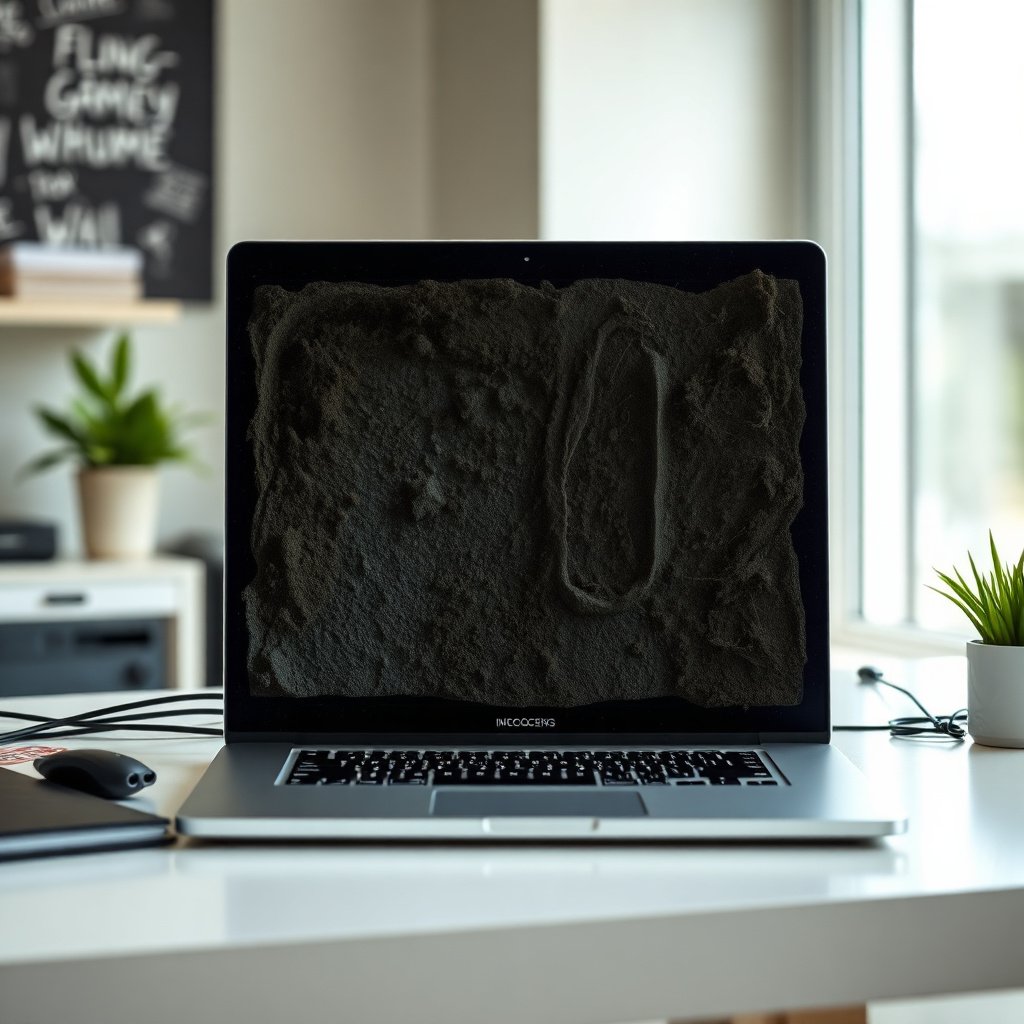
Yes, your gaming PC can collect more than visible dust—often the clearest clues show up in touch feel, airflow, and odor. Visible buildup is only part of the story; “invisible” residue can smear, cling, and re-distribute germs every time you plug in a controller or rest your hands on the desk.
– Visible buildup isn’t the whole story—smears around vents, sticky keyboard/mouse areas, and grime on front-panel ports often show the real problem. Oils and skin salts act like a “binder” for dust. From my day-to-day observation of gaming setups (and helping friends troubleshoot sticky controls), the front USB/audio ports and the keyboard deck areas you lean on tend to feel tackiest first, even when the case exterior looks fine.
– If fans run louder, temperatures creep up, or filters (if you have them) clog fast, that dust layer can also become a germ “catch.” When dust cakes on intake paths, the same airflow that cools your components can also keep re-circulating fine particles into your breathing zone—especially when you’re gaming for hours without airflow breaks.
– A musty smell, discoloration near air intakes, or fuzzy spots can indicate moisture or mold risk—stop and assess before cleaning deeper. Dust plus moisture is different from dry dust: it can change texture, grow, and spread. If you notice any dampness, stop, improve ventilation, and address the moisture source before you start aggressive cleaning.
Where the Germs You Can’t See Usually Hide
The highest-risk areas in a gaming PC aren’t always the obvious dusty spots; they’re the surfaces that repeatedly get touched or repeatedly pull in air and particles. In practice, “germs you can’t see” usually ride along on skin oils, saliva droplets, and fine dust that moves with airflow.
– High-touch zones: controller/keyboard/mouse USB ports, headset cushions, the desk edge you rest your hands on, and the front of the PC where people tend to reach. These areas combine friction (oils spread), contact frequency (more “seed” opportunities), and occasional wet transfer (snacks/sips). The desk edge matters more than people expect because it’s the staging point where oils accumulate and get smeared across your gear.
– Airflow hotspots: intake grills, fan blades (especially around dust “cakes”), and the inside surfaces near the front/top intake paths. Intake grills act like a filter that never fully stops particles—it slows them down and traps them. As dust accumulates, it can reduce cooling performance and increase how often you touch the system while troubleshooting (re-seating cables, moving ports, reopening panels).
– “Forgotten” surfaces: monitor bezel edges, cable ends you constantly move, and speaker grilles (they collect dust that you then re-breathe). Cable ends and monitor bezels are constantly handled, but they’re rarely cleaned with the same care as the keyboard or controller. Speaker grilles are especially sneaky because they collect dust from the room and can stir it up when bass vibrates the surface.
To make this more actionable, here’s a quick risk-oriented reference you can use for deciding what to clean first around your gaming PC:
Gaming PC Hygiene Priority by Surface Type (Practical Home Routine)
| # | Zone on your gaming PC setup | Primary contamination driver | Recommended wipe cadence* | Priority (impact on hygiene) |
|---|---|---|---|---|
| 1 | Controller grips & thumb areas | Skin oils + sweat residue | After each shared-session day (≈1–2×/week) | ★★★★★ |
| 2 | Keyboard deck & frequently touched keys | Oils + crumbs from desk habits | 2–3×/week | ★★★★☆ |
| 3 | Mouse surface & scroll-wheel area | Skin oils + hand contact | 2×/week | ★★★★☆ |
| 4 | Front-panel ports (USB/audio) & buttons | Finger oils + residue transfers | 1–2×/week | ★★★☆☆ |
| 5 | Headset cushions (ear pads) | Skin oils + humidity trapping | 1×/week | ★★★☆☆ |
| 6 | Monitor bezel edges & stand grips | Hand contact + dust film | 1×/week | ★★☆☆☆ |
| 7 | Intake grilles (exterior) & fan pre-filters | Airborne dust capture | 1×/1–2 months* | ★★☆☆☆ |
Cadences assume normal home conditions; increase frequency if you eat/drink at your station, have pets shedding hair, or run a shared setup. The goal is to reduce “transfer” (touch oils) first, then reduce “re-circulation” (dust from intake paths).
Quick Cleaning That Doesn’t Risk Your Hardware
A safe quick-clean plan reduces germs without putting electronics at risk. The key is to power down completely, remove loose dust first, and only apply liquids to cloth—not to the PC.
– Before anything: shut down fully, unplug the PC, and let it cool—don’t clean while powered. This prevents electrical risk and reduces static-discharge concerns. Also, cleaning while hot can soften some plastics and adhesives.
– Use the safe basics: microfiber cloths for exterior surfaces, gentle brushing for loose dust, and compressed air aimed in short bursts to avoid pushing debris deeper. Compressed air is best for pulling dust away from grills and crevices, not for “washing out” residue.
– For smudges on touchable plastics/metals, dampen cloth first (not liquid directly), and follow your manufacturer guidance on any alcohol use. In general practice, many manufacturers allow isopropyl alcohol around 70% on a cloth for certain hard surfaces, but you should verify for your specific keyboard, controller shells, and monitor finishes.
If you’re trying to decide what “safe” means in real hygiene terms, remember that filtration standards and particle sizes connect to why dust matters: PM2.5 is particulate matter with aerodynamic diameter ≤2.5 µm US EPA (PM2.5 definition), and HEPA filters are rated to capture 99.97% of particles at 0.3 µm US Department of Energy (HEPA performance standard). Your gaming PC’s intake is not a HEPA system, so reducing dust load at the source helps reduce the amount of fine particulate that can get kicked back into your workspace.
Deep Clean Plan for Better Hygiene (Without Guessing)
You don’t need to open your gaming PC every time to improve hygiene, but a structured deep clean makes the effort safer and more effective. Think in stages: remove loose dust first, clean touch surfaces next, and only then address intake areas more carefully.
– Step-by-step order matters: start with dust removal (so you don’t smear it), then clean reachable exterior surfaces, then tackle intake areas with careful, directional airflow. If you wipe first, you often turn settled dust into a smeary film that’s harder to remove and more likely to spread onto hands and cables.
– If you remove panels/filters, handle them like “contaminated surfaces” first—wipe or shake outdoors or over a trash bag, then clean the surrounding area. This approach prevents dust from landing back on the desk or inside your room. Work with good ventilation and avoid sweeping dust into the air.
– Reassemble only when everything is fully dry; avoid soaking internal components, and don’t force anything that doesn’t come off easily. Moisture inside electronics can cause corrosion over time, and forcing connectors can damage pins or brackets.
Here’s a practical comparison of common cleaning approaches so you can choose based on what you’re trying to remove:
What Can Go Wrong (and How to Avoid It)
You can make your gaming PC cleaner without causing damage, but a few common mistakes create the biggest problems. If you’re unsure, it’s safer to do exterior cleaning first and pause before opening panels.
– Using liquids directly on electronics can cause corrosion or shorting—always apply to the cloth, not the device. Ports, fan hubs, and seams are the places where liquid “wicks” inward.
– Overdoing pressure with compressed air can loosen connectors or fling debris into places you didn’t intend—use short bursts and keep airflow direction controlled. If you hear the fan blades “whine” while dusting, stop and re-aim to avoid stressing parts.
– “Harsh cleaners” (unknown chemicals, abrasive wipes, strong solvents) can damage coatings, plastics, and labels—check your PC/monitor/case materials first. For instance, some glossy plastics and monitor coatings scratch or haze when wiped aggressively.
– If you suspect mold or heavy moisture, don’t just blow it around— and consider professional help. Moisture remediation is usually about fixing the cause (humidity, leaks, poor ventilation) first; cleaning without addressing the water source can be temporary.
Verdict / Tip: Clean It Like a Habit—Not a Project
Your gaming PC can stay healthier when you treat cleaning as routine instead of a one-time event. A quick hygiene cycle reduces germ transfer at touchpoints, while intake maintenance reduces dust re-circulation and cooling slowdowns.
Here’s the honest downside: deep cleaning takes time, and opening the case increases the chance of static mishaps or warranty conflicts if you go beyond what your manufacturer recommends. If you’re uncomfortable removing panels, your warranty explicitly forbids it, or you suspect serious contamination (especially moisture/mold), skip internal work and focus on exterior touchpoints plus safe intake airflow clearance.
Quick Scan-Save Checklist (Print or Bookmark)
– [ ] Power off + unplug, then let everything cool
– [ ] Wipe case exterior + frequently touched buttons/ports with a lightly damp cloth
– [ ] Clean intake areas/grilles carefully (dust removal first)
– [ ] Vacuum/brush surrounding desk area (so you don’t reintroduce dust)
– [ ] Manage “germ carriers”: clean controller/keyboard/mouse touch points
– [ ] Don’t use direct liquids; don’t apply chemicals without checking guidance
– [ ] Stop if you see moisture/mold—address the cause before continuing
Frequently Asked Questions
How dirty is a gaming PC compared to a toilet or bathroom?
Gaming PCs can be surprisingly germy because they collect dust, skin cells, and moisture from daily use, especially around the keyboard, mouse, and air vents. While the exact “germ level” depends on cleaning habits and environment, the surfaces you touch most often are typically similar to other high-contact electronics. Regular PC cleaning and wiping high-touch areas can reduce bacteria and virus residue on the exterior and peripherals.
What germs hide inside a gaming PC that you can’t see?
Inside a gaming PC, you can find biofilm buildup and trapped dust containing bacteria and allergens, particularly on fans, heatsinks, and intake filters. The fan blades and heatsink fins create a “dust magnet” effect, which can also impact airflow and cooling over time. Even if germs aren’t visible, the dust you blow out during cleaning can carry microorganisms that you don’t want to inhale or spread while dusting.
How often should you clean your gaming PC to reduce germs?
For germ control, wipe keyboard and mouse contact surfaces at least weekly, and do a deeper cleaning every 1–3 months depending on how often you game. If you eat at your desk, have pets, smoke, or game with hands that aren’t freshly washed, you’ll likely need more frequent cleaning. For internal dust reduction, clean or inspect filters and fans regularly to keep airflow strong and reduce the buildup that can trap contaminants.
Why do gaming PCs get so dusty and potentially unhygienic?
Gaming PCs pull in air through intakes to cool components, and that airflow inevitably drags in dust, dander, and debris from the room. Over time, that buildup increases the amount of grime on fans, heatsinks, and internal surfaces, creating an environment where dust and microbes can accumulate. The longer you wait to clean, the harder it can be to remove dust safely without spreading particles throughout your setup.
Which cleaning routine works best to sanitize a gaming PC without damaging it?
Use a safe, non-corrosive electronics cleaner and microfiber cloth for the exterior, then disinfect touch points like keyboard keys, mouse grips, controller surfaces, and desk-adjacent areas. For internal cleaning, power down, unplug, and use compressed air gently to remove dust from fans and vents while avoiding spinning fan blades at high speeds. Let everything fully dry, and consider using an anti-static approach when handling components to keep your gaming PC clean, cool, and germ-reducing.
📅 Last Updated: November 22, 2026 | Topic: How Dirty Is Your Gaming PC? The Germs You Can’t See | Content verified for accuracy and freshness.
References
- https://www.cdc.gov/hygiene/cleaning/index.html
- https://www.cdc.gov/coronavirus/2019-ncov/community/disinfecting-building-facility.html
- https://www.who.int/publications/i/item/cleaning-and-disinfection-of-environmental-surfaces-in-the-context-of-covid-19
- computer keyboard microbial contamination – Search Results – PubMed
- computer mouse microbial contamination – Search Results – PubMed
- Fomite
- How to clean your iPhone – Apple Support
- https://scholar.google.com/scholar?q=computer+keyboard+microbial+contamination+study Google Scholar
- https://scholar.google.com/scholar?q=survival+of+microorganisms+on+surfaces+fomites+hours+days Google Scholar
- https://scholar.google.com/scholar?q=disinfecting+electronic+devices+guidelines+cdc+who Google Scholar


Pingback: How to Clean a Gaming PC With Disinfecting Wipes: Safe Steps - Keto Model
Pingback: How to Clean a Gaming PC With Electronic Contact Cleaner: Steps - Keto Model
Pingback: How to Clean a Gaming PC With a Soft Brush: Step-by-Step - Keto Model