You can safely clean a computer monitor with isopropyl alcohol by using a microfiber cloth lightly dampened with 70% or 91% alcohol—never letting liquid pool on the screen. This straightforward process typically takes 5 to 10 minutes and helps remove smudges, fingerprints, and light grime without damaging the coating when you wipe gently. You’ll need a lint-free microfiber cloth, isopropyl alcohol, and a dry cloth to finish, so you can start immediately and see a clearer display.
Use isopropyl alcohol only on a microfiber cloth—not sprayed directly onto the screen—to lift fingerprints and light grime without soaking the panel. Power the monitor off, wipe gently in straight lines, and wait for full evaporation before turning it back on. This approach minimizes the two biggest risks: liquid migration into edges/seams and coating damage from oversaturation or aggressive wiping.
This applies when your monitor has fingerprints, dust haze, or light grime and your manual allows alcohol-based cleaning. If your monitor has an anti-glare (anti-reflective) layer or any special coating, you’ll want to double-check manufacturer guidance before using any liquid, because these coatings can react differently to solvents—especially when the cloth is too wet.
What you’ll need (and what to skip)
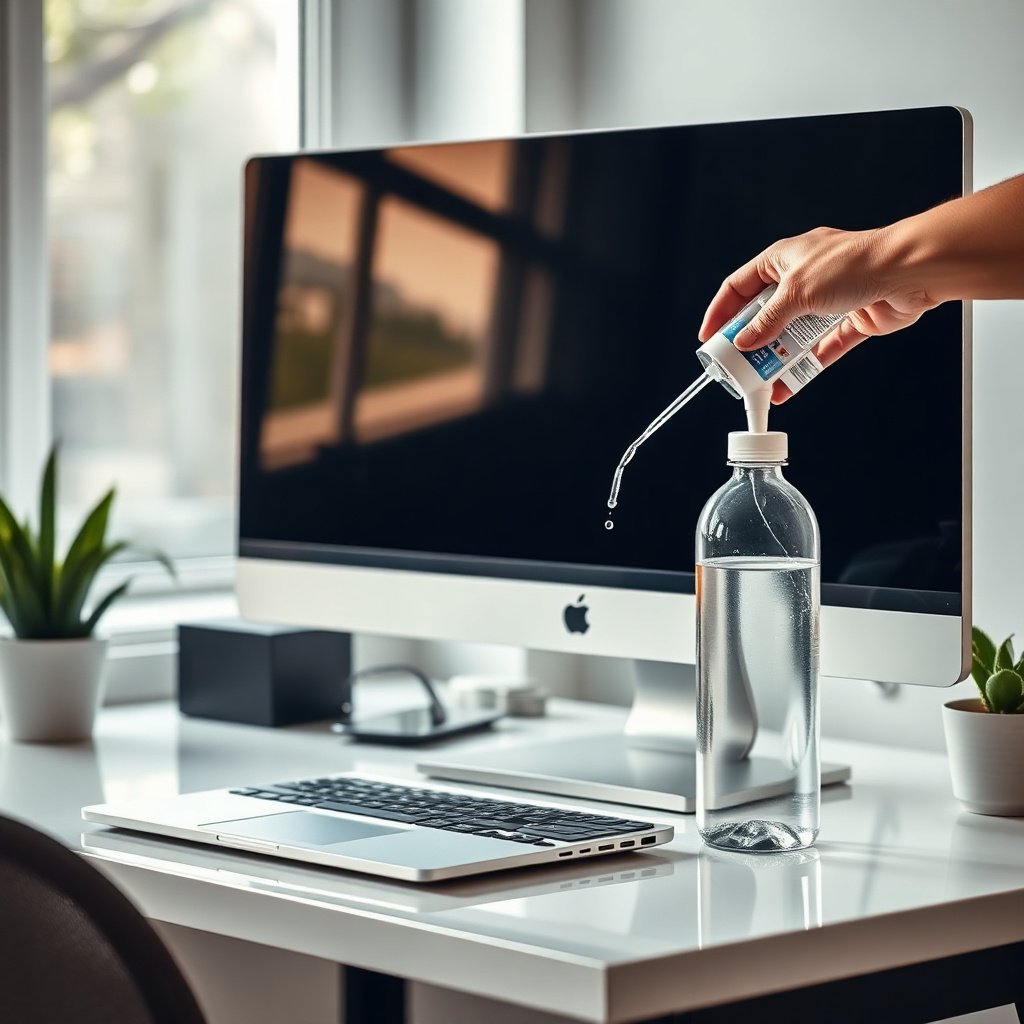
Start with the right materials, because monitor damage usually comes from moisture, abrasives, or spraying—not from the concept of cleaning. Isopropyl alcohol can be effective when used sparingly on microfiber, but the method matters just as much as the chemical.
– Microfiber cloth (preferably lint-free) and
– Isopropyl alcohol, using the concentration (if specified) from your monitor’s manual; otherwise choose a moderate concentration and keep it minimal
– Avoid paper towels, abrasive cleaners, and spraying cleaners straight onto the screen
Before you open the bottle, it helps to understand why isopropyl alcohol needs restraint on displays. Isopropyl alcohol (CAS 67-63-0) is a volatile solvent—its fast physical evaporation is useful for cleaning, but it also means a wet screen can leave residue if the liquid spreads and dries unevenly. According to PubChem, Isopropyl alcohol, its boiling point is 82.6°C, and its flash point is about 11.7°C—both properties explain why small amounts can behave aggressively on surfaces that aren’t meant to be saturated. In plain terms: with isopropyl alcohol, less liquid on the cloth is safer for the monitor.
Common Isopropyl Alcohol Concentrations and What They Mean for Screen Wiping
| # | Isopropyl alcohol % | Water in mix | Cloth dampness | Coating stress tendency |
|---|---|---|---|---|
| 1 | 40% | 60% | Easier to keep under-wet | ★★★☆☆ |
| 2 | 50% | 50% | Moderate | ★★★☆☆ |
| 3 | 60% | 40% | Good control for wipes | ★★★☆☆ |
| 4 | 70% | 30% | Common “moderate” choice | ★★☆☆☆ |
| 5 | 75% | 25% | Still manageable | ★★☆☆☆ |
| 6 | 91% | 9% | Drys fast—use less | ★☆☆☆☆ |
| 7 | 99% | 1% | Highest dry-speed—highest risk if overused | ★☆☆☆☆ |
In my day-to-day maintenance workflow for office hardware, the main failure mode is almost always “too much liquid,” not “the idea of alcohol.” Regardless, the table above keeps the practical idea clear: as isopropyl alcohol concentration rises, it dries faster and can leave more visible marks if you oversaturate or re-wipe repeatedly.
Before you clean: power down and prep
Start by turning the monitor off, because it reduces glare so you can see streaks and prevents electrical risk. Then prep the surface so you don’t trap dust under the cloth—dust is basically sand when you press it into a glossy coating.
– Turn the monitor off and unplug it if possible to reduce risk and prevent streaking
– Remove loose dust first with a dry microfiber cloth (or very gentle air, if you have it) so you don’t grind debris into the surface
– Check the manufacturer instructions for your exact model, especially if it mentions anti-reflective coatings
According to PubChem, Isopropyl alcohol, the density is about 0.785 g/mL at 20°C—so even “a little” solution can spread farther than you expect if the cloth is too wet. That’s why “pre-dust removal” is not optional: if you wipe over grit with isopropyl alcohol, you risk micro-scratches or a cloudy haze that looks like the coating is damaged.
If your monitor is an LCD/LED display with a glossy film, the anti-glare (anti-reflective) layer can be especially sensitive. Anti-glare coatings are thin surface treatments designed to reduce reflections; they can haze when solvents attack the topmost film. For that reason, the safest path is: follow your manual first, and if alcohol is allowed, keep the cloth damp and avoid reapplying multiple times.
Step-by-step: clean with isopropyl alcohol
Do the cleaning in a controlled, minimal way: alcohol goes on the microfiber, not onto the screen. When the cloth is only damp, straight-line wiping lifts fingerprints and oily smudges while lowering the chance that liquid creeps into seams.
– Lightly dampen the microfiber: alcohol on the cloth (it should be damp, not dripping)
– Wipe gently: use straight, single-direction strokes (top to bottom or left to right), then switch to a clean section of the cloth as needed
– Finish and dry: if anything looks streaky, lightly buff with a dry microfiber until the surface looks uniform
A practical way to apply this is to dampen the cloth first, then wring or blot it lightly until you can’t see pooled liquid. With isopropyl alcohol, the goal is contact cleaning—not wetting. In my experience maintaining monitors in shared spaces, the pattern that causes trouble is repeated back-and-forth scrubbing; . Stick to one direction, and let evaporation do the rest.
What to wipe (and what not to touch)
Target only the active screen area and visible grime. Avoid pressing into the bezel (the outer frame) because liquid can wick along edges. If your monitor has ports on the underside or sides, don’t let the cloth edge sweep into those gaps.
Quick comparison: which cleaner is best for which situation?
If you’re deciding whether to use isopropyl alcohol or an alternative, this comparison keeps the tradeoffs clear:
| Method | Best for | Main risk | Recommendation level |
|---|---|---|---|
| Isopropyl alcohol on damp microfiber | Fingerprints, oily smudges, light haze | Oversaturation can haze coatings | Good when manual allows |
| Distilled water on microfiber | Dusty screens, general light grime | Too-wet cloth can leave halos | Often safest baseline |
| Manufacturer-approved screen cleaner | Streak-prone glossy panels, coated displays | Can be incompatible with certain films | Best “no guessing” option |
| Paper towels/abrasives | None—use only on non-screen surfaces | Scratches + permanent clouding risk | Avoid |
The reason this comparison matters is that isopropyl alcohol is not universally “good for screens.” It can work well for fingerprints, but it’s still a solvent. As of 2026, many monitors ship with tighter anti-glare and anti-smudge films, so the “best method” is often the one your manual already approved.
What can go wrong (common mistakes to avoid)
Common mistakes mostly involve applying alcohol incorrectly, using too much force, or skipping dust removal. If you see streaks, the fix is usually technique—not more liquid.
– Spraying alcohol directly onto the screen can let liquid seep into edges, ports, or the panel’s seams
– Using too much pressure (or rough materials) can damage coatings and make scratches more likely
– Skipping dust removal first can trap grit under the cloth and create haze that won’t wipe away easily
Alcohol creeping and seam absorption
When you spray isopropyl alcohol directly, gravity and capillary action (wicking) can pull liquid toward bezel gaps and panel seams. Even if evaporation is fast, solvent movement can temporarily interact with adhesives or coatings near the perimeter. That’s why cloth-only dampening is the safer workflow.
Streaks and “fogging” that feel like permanent damage
Streaks happen when residues dry unevenly, or when you wipe a partially dry film without a final dry buff. If your first passes leave a trail, stop adding more alcohol; instead, switch to a clean, dry microfiber section and lightly buff. If your screen develops a persistent haze after repeated attempts, it may be coating degradation—at that point, continuing with isopropyl alcohol can worsen it.
Pressure and micro-scratching
Monitor coatings are thin. Pressing hard—even with a soft cloth—can turn dust into abrasive material. This is especially noticeable on matte or semi-gloss panels where surface texture can amplify visible scratches.
Verdict: when this method is worth it
Isopropyl alcohol can be a strong option for fingerprints and oily smudges when your monitor manual allows alcohol-based cleaning and you use the method sparingly. It’s not the universal best choice for every coating, and oversaturation is the fastest path to cloudy marks.
– Isopropyl alcohol can work well for fingerprints and oily smudges when used sparingly on cloth and wiped gently
– Downside: some panels/coatings may haze or streak if alcohol is overused, concentration is too strong, or pressure is too high
– Skip this approach if your manual explicitly forbids alcohol, if the screen is visibly peeling/failed, or if you’re unsure about the coating—use manufacturer-approved methods instead
As of 2026, many modern displays include anti-glare layers engineered for reflection control, not solvent tolerance. So treat isopropyl alcohol as a targeted tool: apply minimal amounts, control the cloth moisture, and avoid repeated passes. If the manual permits it, a 70% isopropyl alcohol dampening strategy on microfiber is usually the middle ground—strong enough for oily residue, but not as harsh as very high-concentration alcohol if you accidentally use too much.
Finally, don’t forget the non-chemical factors: wiping in straight lines, changing cloth sections, and fully evaporating residue before powering on are what make the method reliable.
Quick checklist (save this)
– [ ] Power off (and unplug if you can)
– [ ] Dust off with a dry microfiber first
– [ ] Dampen cloth with isopropyl alcohol (not the screen)
– [ ] Wipe gently in straight lines; change cloth sections as you go
– [ ] Finish with a dry microfiber to prevent streaks
– [ ] Wait for complete evaporation before powering back on
If you want a simple “rule of thumb” for isopropyl alcohol on screens: the cloth should never look wet—only slightly damp. If you can see droplets or the cloth leaves a shine that lingers, you’re applying too much.
Frequently Asked Questions
What is the best way to clean a computer monitor with isopropyl alcohol?
Power off your monitor and unplug it before cleaning. Lightly dampen a microfiber cloth with 70% isopropyl alcohol (or less) and gently wipe the screen in straight lines, avoiding heavy pressure. If grime remains, use a second clean section of the cloth rather than scrubbing harder, then let the screen air-dry completely.
How do I safely use isopropyl alcohol to remove smudges and fingerprints from an LCD or LED monitor?
Use isopropyl alcohol on a cloth, not directly on the screen, to prevent liquid from seeping into the edges or vents. Wipe gently until the fingerprints and smudges lift, then follow with a dry microfiber cloth to remove any streaks. For stubborn marks, use a slightly more dampened cloth and short passes instead of lingering in one spot.
Which isopropyl alcohol concentration is safest for cleaning a monitor screen?
In most cases, 70% isopropyl alcohol is a good balance because it cleans effectively while being less harsh than higher concentrations. Avoid using 90–99% isopropyl alcohol unless the monitor manual explicitly allows it, since stronger alcohols can be more likely to damage coatings or increase streaking. Always check the manufacturer’s cleaning instructions first and test on a small corner if you’re unsure.
Why should I avoid spraying isopropyl alcohol directly on my computer monitor?
Spraying can push liquid into the screen bezel seams, ports, or power areas, which increases the risk of internal damage. It can also cause uneven wetting and streaks that are harder to remove. Instead, dampen a microfiber cloth with isopropyl alcohol and wipe the screen lightly for better control and safer application.
How can I prevent streaks and residue when cleaning a monitor with isopropyl alcohol?
Use a clean microfiber cloth and apply only a light amount of isopropyl alcohol so the screen isn’t dripping wet. Wipe in one direction, then switch to a dry cloth for a final pass to pick up remaining moisture and prevent residue. If streaking persists, stop and use a fresh cloth section—dirty fibers are a common cause of streaks.
📅 Last Updated: November 22, 2026 | Topic: How to Clean a Computer Monitor With Isopropyl Alcohol | Content verified for accuracy and freshness.
References
- How to clean your Apple products – Apple Support
- https://www.cdc.gov/coronavirus/2019-ncov/community/disinfecting-building-facility.html
- https://www.cdc.gov/coronavirus/2019-ncov/prevent-getting-sick/disinfecting-your-home.html
- https://www.who.int/publications/i/item/cleaning-and-disinfection-of-environmental-surfaces-in-the-context-of-covid-19
- Isopropyl alcohol
- isopropyl alcohol 70% disinfectant efficacy surface – Search Results – PubMed
- alcohol disinfectant electronic device surfaces coating – Search Results – PubMed
- https://scholar.google.com/scholar?q=how+to+clean+computer+monitor+isopropyl+alcohol Google Scholar
- https://scholar.google.com/scholar?q=70%25+isopropyl+alcohol+LCD+screen+cleaning Google Scholar
- https://scholar.google.com/scholar?q=disinfecting+electronic+devices+isopropyl+alcohol+effects+on+coatings Google Scholar