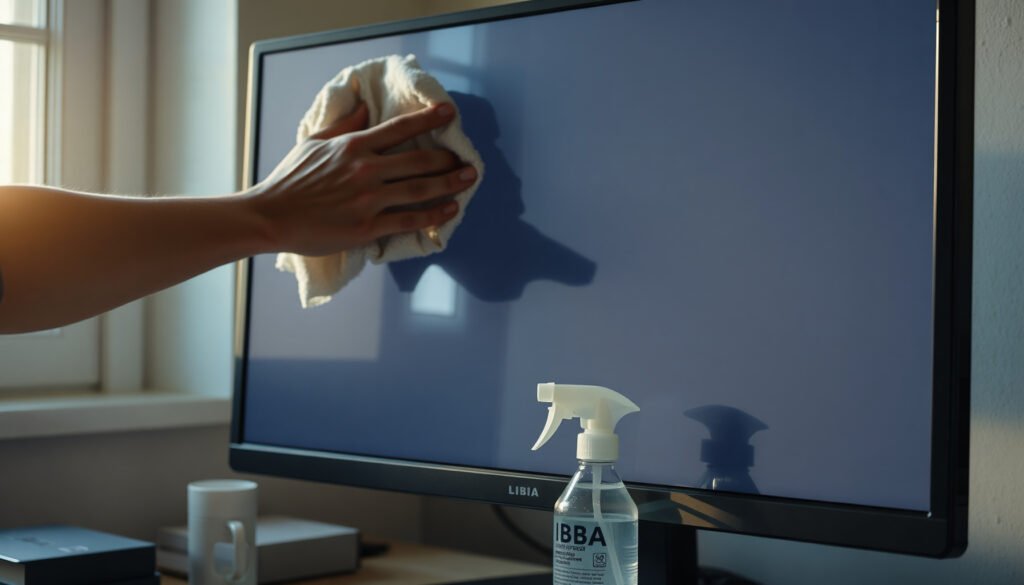

How to Clean a Computer Monitor With Distilled Water Safely: Use distilled water and a clean microfiber cloth to gently wipe the screen, avoiding soaking or spraying directly onto it. Power the monitor off first, remove loose dust lightly, then do short, even passes until smudges lift. This method helps reduce streaks and mineral residue compared with tap water.
Can you safely clean a computer monitor using distilled water without damaging the coating? Yes—when the screen is powered off and you apply water to the cloth rather than the panel. You’ll need a lint-free microfiber cloth, distilled water, and just a few minutes: use gentle strokes to lift smudges, never letting moisture pool, then let the surface dry naturally.
If your monitor gets fingerprints, haze, or streaks (from everyday use, laptops in humid areas, or frequent wiping), this guide is for you. It’s especially useful when you want a simple, low-risk approach that doesn’t rely on harsh cleaners—just distilled water and proper cloth technique.
Gather supplies and prep your workspace
The safest way to clean a monitor with distilled water is to control moisture and friction. Distilled water does the job without adding extra minerals, but only if you use it with the right cloth and a dust-free setup.
– Get distilled water and a lint-free microfiber cloth (ideally a dedicated screen cloth).
– Have a second dry microfiber cloth ready for finishing/drying.
– Use only a well-lit, clean area so you can see smudges and avoid rubbing dirt back into the screen.
Before you start, keep the primary goal in mind: you’re trying to lift oils (fingerprints, skin residue) and fine dust—not “wash” the display panel. In my own workspace routine, I also keep the damp cloth in a separate corner of the desk so I don’t reintroduce dust onto the screen while cleaning with distilled water.
Why microfiber matters for distilled-water cleaning
Microfiber is designed to trap particles on its fibers rather than grinding them across the screen surface. With distilled water, that means the liquid can dissolve light grime while the cloth lifts it away—reducing the chance of gritty drag that can dull coatings.
Power down and remove loose dust first
The direct answer: turn the monitor off, unplug it, and dry-wipe dust before introducing any distilled water. This prevents dust from becoming a smear and helps you avoid pushing grit into the edges.
– Turn the monitor off and unplug it, then let it cool if it was recently in use.
– Lightly wipe with a dry microfiber cloth to pick up dust and grit before using any liquid.
– Avoid paper towels or rough cloths that can scratch coatings—especially on matte or anti-glare surfaces.
Dust-first prevents streaks that look like “oil”
Dust is often the reason people think distilled water “doesn’t work.” If you start by wet-wiping, dust can mix with moisture and form a thin, gritty film that dries unevenly—creating visible streaks. By doing a quick dry pass first, you’re giving the distilled water a cleaner target: the fingerprint oils and smudges, not the particulate layer.
Wipe the screen with distilled water (the core method)
The best core method is to dampen the microfiber cloth with distilled water and wipe gently—never pour or spray onto the monitor. Distilled water’s low mineral content reduces the chance of residue that can dry as haze.
– Dampen the microfiber cloth with distilled water—don’t pour or spray directly onto the monitor.
– Wipe gently with straight, light pressure passes; re-wet the cloth if it starts to drag.
– For stubborn spots, hold the damp cloth against the area briefly (a few seconds) before wiping again.
How much distilled water should the cloth have?
The goal is “damp,” not dripping. If water beads or runs, you have too much. In my experience, a cloth that’s too wet is also what leads to moisture collecting near the bezel seams—exactly where you don’t want it.
Why distilled water reduces haze and mineral residue
When liquid evaporates, minerals left behind can create the “ghosting” look people describe as haze or persistent streaks. According to the U.S. EPA’s *Secondary Drinking Water Regulations*, the recommended maximum for total dissolved solids (TDS) is 500 mg/L because dissolved minerals affect taste and can leave deposits (EPA Secondary Drinking Water Regulations (TDS 500 mg/L)). Distilled water is the opposite direction: it’s processed to remove dissolved ions. For example, ASTM D1193 specifies that Type II reagent-grade water has a conductivity no greater than 1.0 µS/cm at 25°C (ASTM D1193 (Type II conductivity limit)), which corresponds to extremely low mineral content—exactly what you want on a screen.
A practical distilled-water workflow (straight passes)
Use a consistent motion pattern:
1. Start at the top corner and use straight, even passes.
2. Use light pressure and let the cloth do the work.
3. If the cloth starts to feel dry (draggy), re-dampen it with distilled water.
4. Stop when the surface looks uniformly clean under the room’s lighting.
Repeat as needed. The biggest safety improvement you get with distilled water comes from being patient—small, controlled passes beat aggressive scrubbing.
Micro-surface awareness: matte vs. glossy
Anti-glare and matte finishes can show “clouding” sooner if you scrub too hard. With distilled water, the fix is still the same: lighter pressure and more passes. If you’re unsure what coating you have, treat the screen like it’s more delicate than glossy panels and let distilled water and microfiber do the heavy lifting.
Remove streaks and stubborn spots without damage
The safest answer is: use a fresh portion of the same microfiber cloth, then dry-buff with a clean cloth—repeat distilled-water passes before adding any extra pressure. This protects coatings while still improving clarity.
– If you see streaking, use a fresh, lightly damp section of the same microfiber cloth, then follow with dry buffing.
– For marks that won’t budge, repeat the distilled-water passes rather than increasing pressure.
– If your monitor has special coatings, follow the manufacturer’s cleaning instructions (some screens advise against certain chemical cleaners): .
Streaks: fix them with technique, not force
A streak usually means one of three things:
– You wiped over an area that still had residue.
– The cloth was too wet and left a thin film before it fully evaporated.
– You reintroduced dust from the cloth or desk.
With distilled water, the best correction is:
1. Switch to a clean, lightly damp cloth section.
2. Wipe once in straight passes.
3. Dry immediately with a dry microfiber cloth.
Stubborn marks: use “brief contact” sparingly
For stubborn spots, holding the damp cloth against the area for a few seconds can loosen grease without turning the screen into a soak. Avoid letting water sit at edges. If a mark is truly embedded (like dried residue), you may need multiple rounds of distilled water rather than pressing harder.
Dry, finish, and get ready to use again
The direct answer: dry the screen thoroughly with a clean microfiber cloth and wait briefly before turning the monitor back on. Distilled water is gentle, but any leftover moisture near edges still creates risk.
– After the last wipe, dry the screen with a clean, dry microfiber cloth using gentle, consistent strokes.
– Wait a moment before turning the monitor back on so no moisture remains around edges/ports.
– Clean the bezel and stand separately with the same cloth approach (distilled water on cloth, not sprayed onto the device).
Separate the “screen cloth logic” from the rest of the device
Bezel and stand surfaces collect more grime than the screen. In practice, you’ll reduce the chance of recontamination if you:
– Use one approach for the panel (distilled water + clean cloth sections).
– Use another, slightly dirtier approach for the bezel/stand (and switch cloth sections as they load up).
A quick routine we use in many offices (adaptable to distilled water)
Turn off → dry dust pass → distilled water damp cloth passes → dry buff. If you repeat this consistently, distilled water becomes part of a predictable workflow rather than a “special event” cleaning process.
What can go wrong (and how to avoid it)
The direct answer: the main failures come from adding too much water, using tap water that leaves minerals, and using the wrong cloth or pressure. Distilled water helps, but technique still determines the outcome.
– Spraying water directly can allow liquid to seep into edges or vents—always dampen the cloth instead.
– Using tap water can leave mineral deposits that create streaks or haze over time.
– Too much pressure / wrong cloth can scratch the screen or damage anti-glare coatings—start light and repeat instead of scrubbing.
Why tap water can “eventually” look worse
Tap water quality varies by location, but the underlying mechanism is consistent: minerals and dissolved ions remain after evaporation and can redeposit. Water hardness is a useful proxy for how mineral-heavy water can be. According to USGS hardness classifications, water is commonly categorized as:
– Soft: 0–60 mg/L as CaCO₃
– Moderately hard: 61–120 mg/L as CaCO₃
– Hard: 121–180 mg/L as CaCO₃
– Very hard: >180 mg/L as CaCO₃ (USGS water hardness categories)
When you clean a monitor with tap water, you can end up with a thin mineral residue film. Over repeated cleanings, that’s when the “mystery haze” appears—even if each wipe seems to help at first.
Visual guide: water mineral levels that drive deposits
Water Quality Metrics Linked to Monitor Streaking Risk (Key Thresholds)
| # | Water / Metric | Value | Common residue implication | Screen clarity score |
|---|---|---|---|---|
| 1 | Distilled (ASTM D1193 Type II conductivity limit) | ≤ 1.0 µS/cm | Very low dissolved ions left after drying | ★★★★★ |
| 2 | EPA secondary TDS guideline | 500 mg/L | Higher mineral content increases deposit potential | ★★★☆☆ |
| 3 | Soft water (hardness range) | 0–60 mg/L as CaCO₃ | Lower mineral load; fewer visible drying marks | ★★★★☆ |
| 4 | Moderately hard water (hardness range) | 61–120 mg/L as CaCO₃ | Some mineral residue can build with frequent wiping | ★★★☆☆ |
| 5 | Hard water (hardness range) | 121–180 mg/L as CaCO₃ | More likely to leave faint haze unless dried promptly | ★★☆☆☆ |
| 6 | Very hard water (hardness range) | >180 mg/L as CaCO₃ | High mineral load increases streak risk | ★☆☆☆☆ |
| 7 | EPA secondary sulfate guideline | 250 mg/L | Dissolved salts contribute to visible deposits | ★★☆☆☆ |
Verdict / tip: when distilled water is the right choice
Distilled water is a reliable default for routine monitor cleaning because it’s gentle and minimizes mineral residue—especially if you wipe and dry carefully. The downside is that distilled water won’t “solve everything” if you’re dealing with thick grease or if your screen manufacturer explicitly restricts any liquid contact; in those cases, follow the monitor’s instructions first.
Here’s when to stick with this distilled-water method (as of 2026):
– You’re removing fingerprints, oily smudges, and light haze.
– You want a low-risk approach with minimal chemical exposure.
– You live in an area where tap water hardness or mineral content is high.
Here’s when to skip or pause and consult the manual:
– The display is damaged, peeling, or has coating defects (adding moisture can worsen appearances).
– Your monitor’s documentation forbids liquids or specifies particular cleaners.
– You’re attempting to remove something like dried paint, adhesive, or heavy contamination—those cases may require a specific product approved by the manufacturer (not generic “strong” cleaners).
If your monitor is in an unusually humid environment, dried residue can show up faster. Distilled water reduces the mineral problem, but you still need the same technique: damp cloth, gentle passes, and immediate dry-buffing.
Quick checklist (scan & save)
| Step | What to do |
|---|---|
| 1 | Power off, unplug, let cool |
| 2 | Dry microfiber dust first |
| 3 | Dampen cloth with distilled water |
| 4 | Wipe gently; repeat as needed |
| 5 | Dry with a clean microfiber cloth |
| 6 | Wait briefly before turning back on |
Frequently Asked Questions
What’s the safest way to clean a computer monitor with distilled water?
Power off the monitor and unplug it, then let the screen cool to avoid streaks and water spots. Lightly dampen a microfiber cloth with distilled water (never pour water directly onto the display) and gently wipe in straight or circular motions. Dry with a second clean microfiber cloth to remove any remaining moisture, especially around edges and bezels.
How do you remove smudges or fingerprints from a monitor using distilled water?
Use distilled water because it reduces mineral residue that can leave cloudy spots. Dampen the microfiber cloth just enough to lift oils, then wipe the fingerprint area using light pressure and overlapping passes. If stains persist, re-dampen the cloth and repeat, then finish with a dry microfiber cloth to prevent streaking.
Why should you avoid tap water when cleaning a computer screen?
Tap water contains minerals and impurities that can dry on the screen and create visible spots or haze. Distilled water minimizes residue, making it a better choice for routine screen cleaning and for people who frequently see streaks after wiping. For best results, always use a microfiber cloth and avoid soaking the display surface.
What’s the best technique for cleaning a glossy vs. matte monitor with distilled water?
For glossy screens, wipe gently and use minimal moisture to prevent streaks—start with a lightly damp microfiber cloth and follow immediately with a dry cloth. Matte screens typically tolerate slightly more pressure, but you still want light, consistent passes to avoid pulling particles into the coating. In both cases, clean with distilled water, avoid pressing hard, and do not let liquid pool at the edges.
Which tools should you use to clean a monitor with distilled water (and which should you avoid)?
Use clean, lint-free microfiber cloths and distilled water applied to the cloth, not sprayed directly onto the monitor. Avoid paper towels, rough fabrics, and abrasive cleaners because they can scratch the screen coating or leave lint. Don’t use ammonia, alcohol, or harsh chemicals unless the manufacturer explicitly approves—distilled water and proper wiping are usually enough for safe computer monitor cleaning.
📅 Last Updated: November 22, 2026 | Topic: How to Clean a Computer Monitor With Distilled Water | Content verified for accuracy and freshness.
References
- Distilled water
- Microfiber
- Liquid-crystal display
- https://www.cdc.gov/coronavirus/2019-ncov/community/disinfecting-building-facility.html
- https://www.who.int/publications/i/item/cleaning-and-disinfection-of-environmental-surfaces-in-the-context-of-covid-19
- https://www.epa.gov/coronavirus/cleaning-and-disinfecting
- https://scholar.google.com/scholar?q=cleaning+LCD+screen+distilled+water Google Scholar
- https://scholar.google.com/scholar?q=best+practices+cleaning+computer+monitor+screen+with+water Google Scholar
- https://scholar.google.com/scholar?q=microfiber+cloth+screen+cleaning+study Google Scholar