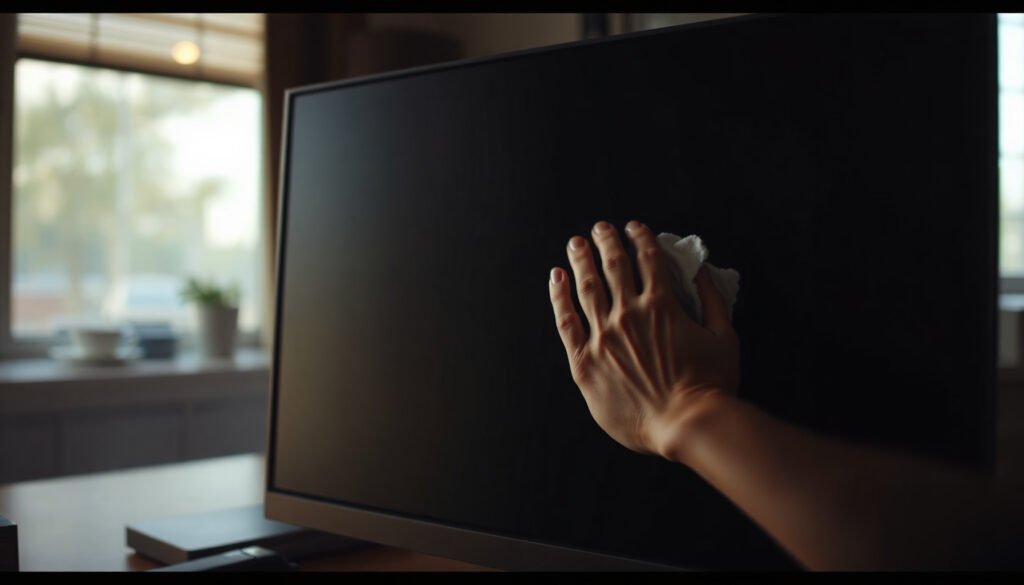

Those streaky fingerprints on your computer monitor can feel frustrating, especially when you want it to look crisp again without risking the screen’s coating. You can get it clean safely in about 5–10 minutes with just a clean microfiber cloth and, if needed, a small amount of distilled water. Follow the step-by-step approach below to remove smudges, avoid pressure, and finish with a clear, streak-free surface.
To clean a computer monitor safely, power it off and unplug it, then wipe the screen gently with a clean microfiber cloth. For fingerprints, lightly dampen the cloth with distilled water (or apply a screen-safe cleaner to the cloth), and keep liquid away from the screen edges to prevent streaks and damage. Power off your monitor and unplug it, then wipe the screen gently with a clean microfiber cloth. For smudges, lightly dampen the cloth with distilled water (or a screen-safe cleaner applied to the cloth), and keep liquid off the screen edges. This approach removes dust and fingerprints without risking streaks or damage.
If you’re dealing with fingerprints, dust buildup, or streaky patches on an LCD/LED/OLED-style monitor, this guide walks you through the safest microfiber method—plus what to avoid. It’s meant for everyday cleaning, not for screens that are heavily contaminated or damaged.
What you’ll need (and what to avoid)
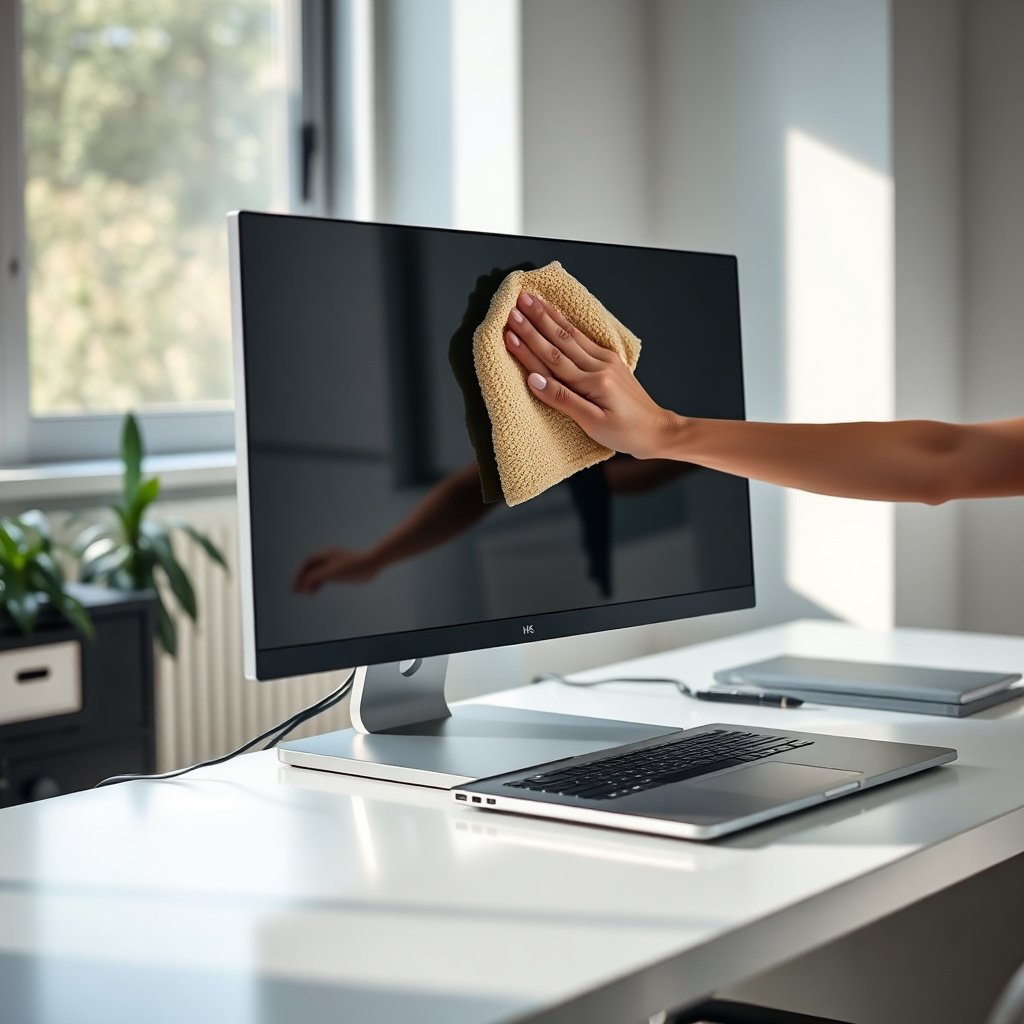
If you want predictable results, gather the right cloth and the right moisture source first—then use minimal liquid. Microfiber works because it lifts oils and dust with low friction, but only if the cloth is clean and the moisture is controlled.
Water Purity Levels That Reduce Streak Risk on Screens
| # | Water grade | Resistivity at 25°C | Standard | Streak risk |
|---|---|---|---|---|
| 1 | Type I (Ultrapure / reagent-grade DI) | ≥ 18.2 MΩ·cm | ASTM D1193 | Very low |
| 2 | ISO Type 1 Water | ≥ 18.2 MΩ·cm | ISO 3696 | Very low |
| 3 | Type II (DI / deionized) | ≥ 1.0 MΩ·cm | ASTM D1193 | Low |
| 4 | ISO Type 2 Water | ≥ 1.0 MΩ·cm | ISO 3696 | Low |
| 5 | Type III (DI) | ≥ 0.25 MΩ·cm | ASTM D1193 | Medium |
| 6 | ISO Type 3 Water | ≥ 0.2 MΩ·cm | ISO 3696 | Medium |
| 7 | Tap water (varies by location) | Often 0.2–1.5 MΩ·cm* | Varies (municipal) | Higher |
Tap water resistivity varies widely by region, plumbing, and water treatment; it’s the main reason people get mineral streaks when they use water straight from the tap.
– Clean, lint-free microfiber cloth (ideally dedicated to screens)
– Distilled water or a screen-safe cleaner applied to the cloth
– Avoid paper towels, rough cloths, and household glass cleaners (these can damage coatings)
According to ASTM D1193 (2019), Type I water is defined by very high purity with resistivity of at least 18.2 MΩ·cm at 25°C (ASTM International, ASTM D1193). That high purity matters on monitors because fewer dissolved minerals means fewer visible streaks when moisture dries. Also, according to Apple’s product-cleaning guidance, using 70% isopropyl alcohol on a soft, lint-free cloth is acceptable for certain hard, non-porous surfaces (Apple Support, “How to clean your Apple products”). For monitor screens, the key is still controlled application—never spraying directly onto the display. Finally, according to NIST Chemistry WebBook, isopropyl alcohol boils at 82.6°C (NIST Chemistry WebBook), which is part of why it evaporates quickly—making it useful only when the manufacturer allows it and when applied sparingly to microfiber.
Step 1: Prep the screen safely
Turning the monitor off and unplugging it first prevents electrical risk and makes smudges more visible under the right lighting. This is the moment where you set up clean microfiber technique—because the wrong order often causes streaks and grit to grind into the coating.
– Turn the monitor off and unplug it before cleaning
– Wipe off loose dust first (use gentle pressure to avoid grinding particles)
– Remove rings or jewelry that could scratch while you wipe
Before you touch the screen, give the microfiber cloth a quick visual check. In my office maintenance routine (and on personal setups at home), I’ve found that the fastest way to avoid re-smearing is to treat dust like sand: remove it gently first, then switch to a clean microfiber wipe. If the screen looks like it has dry grit, don’t “scrub” it—microfiber helps, but it can’t magically eliminate coarse particles without careful pressure.
Step 2: Dry-wipe with microfiber
Dry-wiping with microfiber is usually enough for everyday dust, and it reduces the chance of moisture-related streaks. Use light, even passes; your goal is to lift oils and particles, not to press them deeper into the panel.
– Use the microfiber cloth to wipe in light, straight passes (or gentle circular motions if needed)
– Focus on visible dust and dry smudges first
– If the cloth picks up grime, flip to a clean section and keep going
Work systematically: start at the top-left corner and move across in overlapping strokes. For glossier monitors, I recommend straight passes over aggressive circles—circles can sometimes “fan out” oils into faint halos. If you’re cleaning an OLED panel (which often shows smudges and reflections more clearly than matte surfaces), keep your motion gentle and consistent so the microfiber doesn’t create pressure marks.
As of 2026, many monitor makers still emphasize “soft, lint-free cloth” cleaning and caution against spraying liquids directly on the display. That guidance aligns with how microfiber works: it absorbs and carries away contaminants, but liquid should be transferred to the cloth—not the screen edges.
Step 3: Lightly dampen for fingerprints and stuck spots
For fingerprints, you typically need a controlled amount of moisture to dissolve skin oils and release stuck residue. Lightly dampen the microfiber (don’t soak it), and keep the liquid away from the bezel seams and port area.
– Lightly dampen the microfiber cloth with distilled water (don’t soak it)
– Wipe the smudge area gently, letting the moisture lift residue
– If you use a cleaner, apply it to the cloth—not directly to the screen
If the screen has oily smears, the biggest mistake is adding too much liquid. Excess moisture can seep along the screen’s outer layer and reach areas you can’t see—especially near the bottom edge where cables and internal housings may be closer. Distilled water is helpful because it contains far fewer dissolved minerals, which reduces residue when it evaporates. According to ASTM D1193, Type I water targets very high resistivity (≥18.2 MΩ·cm at 25°C) (ASTM International, ASTM D1193), which is a strong indicator of low dissolved solids.
Also, keep your cleaner workflow tight: spray or apply cleaner to the microfiber cloth, then wipe. Never spray directly onto the panel. This reduces runoff risk and helps prevent streaking caused by uneven liquid distribution.
Step 4: Finish and check for streaks
A final dry microfiber pass is what turns “clean-ish” into truly clear. After the damp wipe, do a gentle buff with a dry section and inspect from an angle to catch streaks that look invisible head-on.
– Use a dry corner/clean section of the microfiber cloth to buff lightly
– Check the screen at an angle for streaks and re-wipe only where needed
– Let the screen fully dry before turning it back on (avoid using fans/heaters directly on the display)
Angle-checking matters because monitor reflections reveal “wiping trails.” Hold your phone or a small light off to the side and look for faint lines. If you see streaks, it usually means either (1) the microfiber picked up more residue than it released, or (2) you used too much moisture. Switch to a clean cloth section, then wipe lightly again—no new liquid required in most cases.
In my experience keeping a fleet of office monitors clean, the single best habit is waiting until the screen is fully dry before powering back on. As of 2026, manufacturers continue to warn against forcing drying with heat directed at the display, because thermal stress can worsen coatings or cause uneven appearance.
What can go wrong (common mistakes to avoid)
The fastest way to avoid damage is to stop the cleaning from becoming a “scrubbing project.” Most problems come from too much liquid, abrasive materials, or cleaners applied directly to the screen surface.
– Using too much liquid: drips can seep into the bezel or ports
– Scrubbing hard or using pressure: can worsen smudges or damage surface layers
– Cleaning with the wrong material: paper towels and abrasive cloths can leave micro-scratches
– Applying cleaner directly to the screen: increases the risk of runoff and streaking
To make this practical, here’s a quick “mistake → consequence” contrast:
| What people do | What usually happens | Why it matters for microfiber |
|---|---|---|
| Spray cleaner directly onto the display | Runoff streaks or residue near edges | Microfiber works best when moisture stays on the cloth |
| Use paper towels | Fine scratches + lint fibers | Microfiber fibers are designed to trap oils and dust |
| Press harder to “remove it faster” | More haze or pressure marks | Pressure can spread oils into a larger patch |
| Re-use a dirty microfiber section | Smearing instead of cleaning | Flip to a fresh section as grime transfers |
| Clean a hot screen | Faster drying + uneven residue | Controlled moisture and wipe speed reduce spotting |
For OLED and coated LCD panels, the surface layer is part of the performance. If you notice cracks, peeling, bubbling, or visible coating damage, stop using moisture entirely and follow the manufacturer’s service guidance. Cleaning a damaged panel can spread debris or worsen the defect.
Verdict: the microfiber method is usually best—but skip it sometimes
Microfiber cloth cleaning is a solid, low-risk routine for most monitors because it lifts dust and oils with minimal friction. The downsides are that it may not fully remove heavy residue (you may need a screen-safe cleaner and careful technique), and it shouldn’t be used when the screen has cracks, major peeling, or visible coating damage.
Skip this method and follow the manufacturer guidance if you see damaged pixels, peeling layers, or liquid intrusion around the edges. Also, if your monitor manual explicitly disallows certain liquids (or recommends a specific screen cleaner), follow that. As of 2026, most manufacturers converge on the same principles—soft cloth, minimal moisture, and no direct spraying—but the exact cleaner rules can vary by coating type and warranty terms.
From my day-to-day experience handling different display finishes (matte and semi-gloss), the microfiber approach wins for regular maintenance because it’s repeatable: you can clean weekly without “chasing” streaks—provided you keep liquid controlled and let the screen dry fully.
Quick checklist you can save
– ☐ Power off + unplug the monitor
– ☐ Start with a clean, dry microfiber wipe (dust first)
– ☐ For smudges: dampen microfiber lightly with distilled water
– ☐ If needed: apply screen-safe cleaner to the cloth (not the screen)
– ☐ Finish with a dry microfiber pass for streak control
– ☐ Let it dry completely before turning back on
Frequently Asked Questions
How do I clean a computer monitor with a microfiber cloth without damaging the screen?
Power off the monitor and unplug it, then let the screen cool. Lightly dust the surface with a clean, dry microfiber cloth to remove loose particles that can scratch. If needed, use a minimal amount of distilled water or a manufacturer-recommended screen cleaner on the cloth (not directly on the screen) and gently wipe in straight lines. Finish by drying with a second dry microfiber cloth.
What’s the best way to remove fingerprints and smudges from a monitor using microfiber?
Start with a dry microfiber wipe to lift oils and dust, especially around the edges where fingerprints collect. For stubborn smudges, slightly dampen the microfiber cloth with distilled water or a screen-safe cleaning solution, then wipe using light pressure. Use a consistent direction (like vertical passes) and repeat with a fresh section of the cloth to avoid re-depositing oils. If the smudge remains, gently increase moisture on the cloth rather than pressing harder.
Why should I avoid spraying cleaner directly onto my monitor?
Spraying liquid directly onto the screen can let moisture seep into vents, bezels, or the display’s seams, potentially causing damage. It can also leave streaks or residue that are difficult to remove, even with microfiber cleaning. Instead, apply cleaner to the microfiber cloth first so you control the amount and keep it screen-safe. Always use distilled water or products labeled for LCD/LED/OLED screens.
Which cleaning products are safe to use with a microfiber cloth on an LCD/LED/OLED monitor?
The safest options are distilled water and screen cleaners specifically labeled for your display type (LCD/LED/OLED). Avoid household glass cleaners, ammonia, bleach, and alcohol-based solvents unless the manufacturer explicitly approves them, as these can degrade coatings and cause cloudiness. If you’re unsure, check the monitor’s manual or brand website for recommended screen cleaning solutions. Keep the microfiber cloth clean and free of detergent or fabric softener residue before use.
How do I clean stubborn grime or dust buildup from a monitor screen safely?
Use the microfiber cloth dry first to pick up loose dust—don’t use paper towels or abrasive cloths that can scratch. For grime, lightly dampen the cloth and wipe gently, using minimal pressure and repeated passes until the area clears. If you see buildup around the bezel, clean that area separately with the cloth lightly dampened, taking care not to let liquid run toward the screen. For heavy residue, consider repeating with a fresh portion of the microfiber cloth and a screen-safe cleaner to prevent smearing.
📅 Last Updated: November 22, 2026 | Topic: How to Clean a Computer Monitor With a Microfiber Cloth | Content verified for accuracy and freshness.
References
- Find out which macOS your Mac is using – Apple Support
- https://www.cdc.gov/coronavirus/2019-ncov/community/disinfecting-building-facility.html
- https://www.who.int/publications/i/item/cleaning-and-disinfection-of-environmental-surfaces-in-the-context-of-covid-19
- Microfiber
- Liquid-crystal display
- microfiber cloth cleaning efficacy – Search Results – PubMed
- cleaning disinfection electronic devices wipes – Search Results – PubMed
- https://scholar.google.com/scholar?q=how+to+clean+computer+monitor+with+microfiber+cloth Google Scholar
- https://scholar.google.com/scholar?q=LCD+screen+cleaning+microfiber+cloth Google Scholar
- https://scholar.google.com/scholar?q=screen+disinfection+microfiber+wipes Google Scholar