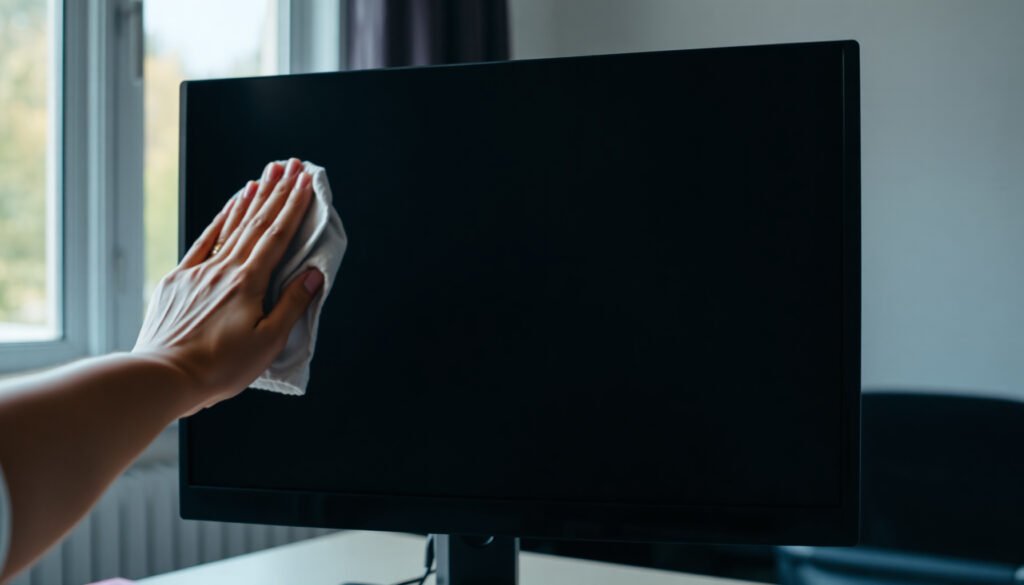

You sit down to work, wipe the monitor, and still feel like your screen looks hazy and leaves a faint residue on your fingertips. The smears may be more than fingerprints—microbes from hands, dust, and airborne particles can cling to the display surface. Most of the grime builds up during daily touch and from cleaning methods that remove streaks without disinfecting, so follow the steps below to get it truly clean and reduce the spread of germs.
Your computer monitor can pick up skin oils, dust, and germs you can’t easily notice—and those residues can transfer to your hands the next time you touch the screen. The good news is that a microfiber cloth plus a screen-safe cleaner used correctly can sharply reduce buildup and the risk of cross-contamination. In this guide, you’ll learn what actually collects on screens, how to clean safely step-by-step, and what mistakes (like spraying cleaner directly on the display) tend to make things worse.
If your monitor sits in a shared office, a family workspace, or a high-touch environment (hot desks, gaming setups, client-facing stations), cleaning becomes more than “cosmetic.” The monitor you touch multiple times a day is also the surface that smears residue every time you swipe fingerprints off with a dry cloth. As of 2026, workplaces increasingly treat “high-touch” tech surfaces as routine hygiene surfaces, not just visual equipment.
What actually builds up on your computer monitor
– Dust particles mix with skin oils, sweat residue, and everyday grime from nearby surfaces.
– Screens can hold onto smudges that make contamination easier to spread (especially when you wipe “dry”).
– A dirty monitor also acts like a dust magnet, so it can collect more over time than a clean one.
A computer monitor behaves differently from many other surfaces because it’s smooth, visually forgiving, and frequently touched. In practice, the “invisible” layer is usually a mixture: (1) skin oils from fingers, (2) micro-particles from dust and fabrics, and (3) residues from air quality (smoke, cooking aerosols, or cleaning fumes) that can leave a faint film. That film changes how new dirt adheres—so even routine wiping can spread what’s underneath.
Skin oils + dust: why fingerprints feel “sticky”
Skin oils aren’t just greasy—they’re complex lipids that can trap atmospheric particles. Once that layer forms on a computer monitor, your next touch becomes a mixing event: you transfer oil to the screen and pick up particles back onto your fingers. Even if germs aren’t obvious, this oily film can increase how easily contaminants move between the screen and hands.
Germs on electronics: persistence matters
When people ask “How dirty is my computer monitor?” they’re often really asking, “Can germs survive long enough to matter?” Germs don’t all behave the same on surfaces, but surface persistence is real for many viruses. For example, according to van Doremalen et al., Nature Medicine (2020), SARS-CoV-2 remained detectable on plastic and stainless steel for up to 72 hours. While the exact risk depends on exposure and cleaning frequency, the practical takeaway is consistent: reducing residue on the computer monitor reduces how much material is available for transfer.
Micro-mess that you can’t “see” but can measure in behavior
In 2026 office routines, the most common reason monitors stay grimy isn’t lack of effort—it’s technique. Wiping a computer monitor “dry” often smears oil and dust into a more uniform haze. That haze is visually annoying and also functionally dirt-friendly: it lowers friction resistance so particles spread more easily with each touch.
Screen Cleaning Methods vs Screen-Safety (Desktop/Office Monitors, 2026)
| # | Cleaning method | Key guidance point | Setup detail (what goes where) | Screen-safety rating |
|---|---|---|---|---|
| 1 | Microfiber dry wipe | Best for light dust and fingerprints; minimizes liquid exposure | Wipe gently; no spray; replace cloth section as it loads | ★★★★★ |
| 2 | Distilled water + microfiber | Soap-free water approach for routine grime | Lightly dampen cloth only; avoid drips into edges | ★★★★★ |
| 3 | 70% isopropyl alcohol (cloth-applied) | CDC guidance uses alcohol at ≥70% | Apply to cloth; wipe lightly; let fully air-dry | ★★★★☆ |
| 4 | 70% ethanol (cloth-applied) | CDC guidance uses alcohol at ≥70% | Apply to cloth; avoid pooling; dry thoroughly | ★★★★☆ |
| 5 | Mild detergent (very diluted) + water rinse wipe | Detergent helps lift oily residue before disinfection | Use sparingly; follow with a damp water-only pass | ★★★☆☆ |
| 6 | Diluted bleach (highly screen-dependent) | CDC bleach mix: 5 tbsp per gallon for disinfection | Generally avoid on screens unless manufacturer permits | ★☆☆☆☆ |
| 7 | Ammonia/glass cleaners (unknown additives) | Not designed for screen coatings; often leaves residue | Avoid spraying; check the display manual first | ☆☆☆☆☆ |
Signs your monitor needs cleaning (and why it matters)
– Visible streaks, haze, fingerprints, or a “greasy” look usually mean oils are present, not just surface dust.
– If your screen feels slick to the touch, it’s often a sign of residue that attracts more dirt.
– People who touch the screen frequently (kids, shared workstations, frequent wiping) may notice faster buildup.
If you can see it, there’s already more going on than “surface dust.” On a computer monitor, the moment oils create a film, you’ll notice more smearing—because the film makes wiping act like a spreader rather than a remover. This is also why haze can appear even after “cleaning”: you may have moved residue around instead of lifting it away.
What “slick” really indicates on a computer monitor
A screen that feels slick typically has a residue layer that holds onto dust and can increase friction as you touch it. That matters because it changes the transfer loop: you touch the monitor, pick up residue, touch your face, and repeat. Even when germs aren’t plentiful, the buildup increases the chance of transfer of whatever is present on your hands and in the environment.
Faster buildup in shared environments
On shared workstations—hot desks, classrooms, client-lab computers—monitor touch frequency is the dominant driver of how quickly grime returns. If multiple people use the same computer monitor and it’s wiped often, technique becomes critical: aggressive wiping can spread oily residue into a wider film. As of 2025–2026, many facilities treat monitors as high-touch surfaces, but the operational goal is still the same: clean correctly enough that residue stops accumulating.
The “invisible contamination” problem: residue supports spread
Even if your computer monitor doesn’t look dirty, residue can still spread across the glass/plastic surface when you touch the screen or slide a finger along an on-screen control. The visible signs (streaks, haze, fingerprints) often appear after the residue film has already formed and distributed more contaminants across the viewing area.
How to clean your monitor safely (right way, step-by-step)
– Power off the monitor and unplug it if possible; let it cool so the screen is less likely to be harmed by moisture.
– Use a microfiber cloth and apply cleaner to the cloth (not directly to the screen), then wipe gently with light pressure.
– For stubborn spots, use a slightly damp (not dripping) cloth and repeat short, careful passes until the residue lifts.
Safe cleaning is mostly about preventing liquid from getting where it shouldn’t. When you clean a computer monitor, you’re dealing with delicate coatings, edge seals, and internal layers that can be affected if moisture gets pulled into seams. The best method is controlled: power down, use a microfiber cloth, and keep cleaner off the display surface except as a light, cloth-applied film.
Step 1: make the computer monitor safe to clean
Power off the monitor and, if possible, unplug it. Cooling matters because a warm screen can make moisture evaporate unevenly, which can increase streaking. From there, inspect the monitor under good light: note where fingerprints accumulate (typically the center and edges your hands reach). This quick look helps you avoid over-wiping—an important habit for computer monitors with anti-glare or anti-smudge coatings.
Step 2: cloth-first application prevents liquid damage
Use a microfiber cloth and apply screen-safe cleaner to the cloth—not to the screen. This workflow is consistent with how major tech manufacturers recommend cleaning displays: it reduces the chance of cleaner running into corners and seams. Wipe gently with light pressure. If residue remains, don’t “scrub hard”; instead, take another short pass with a slightly cleaner portion of the microfiber cloth.
Step 3: handle stubborn residue without damaging the coating
For stubborn spots, use a slightly damp (not dripping) cloth and repeat short, careful passes. If streaks appear, you may be using too much liquid or re-spreading residue. Let the screen air-dry completely before powering on. In 2026 office environments, this “dry time” step is especially important for monitors that have tight bezel gaps and sensor windows.
Comparison: what’s effective vs what risks the screen
| Approach | Why it works | Main risk |
|---|---|---|
| Microfiber + light cloth-applied cleaner | Lifts oils and smudges while limiting liquid exposure | Less risk if you avoid excess pressure and liquid |
| Dry wiping only | Removes some dust, but doesn’t reliably dissolve oily film | Smears haze and spreads residue across the screen |
| Spray directly onto the computer monitor | May make it easier to “see” wet areas | Liquid can run into edges and degrade coatings |
What can go wrong when you clean the screen
– Spraying cleaner directly onto the display can drive liquid into edges, seams, or the screen’s coating.
– Using paper towels, abrasive cloths, or “harsh” cleaners can cause scratches and may degrade protective screen layers.
– Skipping manufacturer guidance can be risky—some monitors tolerate only specific cleaning methods (check the model’s instructions).
Even a well-meaning wipe can create long-term damage on a computer monitor. The two biggest failure points are excess liquid and the wrong materials/chemicals. Coatings can be thin and purpose-built: they’re engineered to reduce glare, repel fingerprints, or improve viewing. The cleaner you choose and how you apply it determines whether you’re removing residue—or gradually wearing away the screen’s protective layer.
Common mistake #1: oversaturating the computer monitor
When you spray cleaner directly onto a computer monitor, gravity and surface tension can move the liquid into edges and seams. That can lead to streaking, spotting, or—in worst cases—moisture-related issues around the display assembly. In 2025–2026 cleaning routines, this is why the “apply to cloth, not screen” approach is repeatedly emphasized: it’s simple, controlled, and safer.
Common mistake #2: abrasive materials
Paper towels often feel convenient, but they can be too rough for coated displays and can introduce micro-scratches. Abrasive cloths can also leave fibers behind, which then catch dust. For a computer monitor, scratches aren’t just cosmetic: they change how light scatters, which increases haze visibility and makes future cleaning less effective.
Common mistake #3: harsh chemicals and mismatched cleaners
“Household glass cleaner” is usually formulated for glass—not coated displays—and may include ingredients that harm protective layers. Bleach and ammonia are especially problematic for many screens. If you want to use a disinfectant, start with guidance for non-porous surfaces and then verify electronics compatibility in your monitor’s manual.
Verdict: a practical cleaning tip that’s worth doing
– If you want a simple rule: clean when you see visible buildup, and keep a microfiber cloth handy for quick maintenance.
– Downsides to consider: over-cleaning or using too much liquid can wear down coatings or leave streaking that’s harder to remove.
– Skip this advice (or slow down) if your monitor has special coatings or if you can’t access the manufacturer’s cleaning guidance—.
The best practical approach for a computer monitor is to clean proactively when you see buildup—then maintain with low-risk, low-liquid methods. Clean too aggressively, and you can damage coatings or create streaks you’ll struggle to remove. Clean too rarely, and residue builds into a film that attracts dust and makes germs easier to spread by touch.
A realistic “how often” strategy for 2026
Instead of aiming for a fixed calendar date, focus on behavior-driven triggers: visible fingerprints, haze, sticky feel, or noticeable streaks. In shared workplaces in 2026, that often means quick microfiber passes more frequently, with deeper cleaning only when residues become obvious. This reduces the “residue accumulation” cycle without constantly exposing the computer monitor to liquid and friction.
Disinfecting: use the right chemical only when appropriate
If you’re disinfecting a computer monitor surface, use disinfectants with guidance that aligns with your monitor’s materials. For example, according to CDC (updated COVID-19 cleaning guidance), alcohol solutions with at least 70% alcohol are commonly recommended for disinfection of many surfaces. Likewise, CDC provides a bleach dilution recipe: 5 tablespoons of bleach per gallon of water for disinfection. Still, electronics compatibility is not universal—always verify what your monitor manufacturer allows before applying these substances to the display area.
Who should slow down (or stop)
Skip the “wipe often” routine if your computer monitor has special coatings that require specific products (often noted in the manual). Also pause if you can’t access cleaning instructions and you’re unsure what “screen-safe” means for your model. When in doubt, start with microfiber and distilled water and avoid disinfectant chemicals on the screen itself.
Quick checklist you can scan before you wipe
| Do this | Avoid this |
|---|---|
| Power off / let the screen cool first | Spraying cleaner straight onto the screen |
| Use a microfiber cloth | Paper towels or abrasive wipes |
| Dampen the cloth lightly, not dripping | Strong solvents or household glass cleaners (unless your manual says it’s OK) |
| Wipe gently with light pressure | Scrubbing hard to “get it off fast” |
| Let it fully dry before powering on | Leaving moisture pooled near edges |
Frequently Asked Questions
How dirty is my computer monitor, and what germs can it carry?
Computer monitor surfaces can accumulate dirt, skin oils, dust, and microbes from everyday touch and air exposure, especially near the top bezel where people rest their hands or use a touchscreen. While screens aren’t usually a primary “germ hotspot” like keyboards, monitors can still harbor bacteria and viruses, particularly after being in shared spaces such as offices, classrooms, or waiting rooms. Regular cleaning helps reduce the germ buildup you can’t see.
What’s the best way to clean a computer monitor to remove germs without damaging the screen?
Use a microfiber cloth lightly dampened with a screen-safe cleaner to lift grime and reduce germs without scratching. Avoid spraying liquid directly onto the monitor; instead, apply cleaner to the cloth first, then wipe gently in one direction. For disinfecting, choose products labeled safe for screens (often alcohol-free or specifically approved), and follow the dwell time instructions so the disinfectant can actually work.
Why does my monitor collect more grime than I expect?
Monitors attract dust due to static and continuously exposed surfaces, and fingerprints add oils that make dirt adhere more easily. If you frequently touch the screen with hands or use a shared workstation, the chance of transferring germs increases even if the display looks “clean.” Over time, grease and dust form a film that can trap microorganisms and make cleaning less effective if you only do quick wipes.
How often should I disinfect my computer monitor to reduce the germs you can’t see?
For typical home or personal use, cleaning the monitor every 1–2 weeks and disinfecting monthly is often enough, but you should increase frequency if multiple people use the device or someone is sick nearby. In workplaces, classrooms, or healthcare-adjacent settings, aim for routine cleaning between uses and more frequent disinfection during high-touch periods. If you notice fingerprints, smudges, or visible dust buildup, clean sooner to prevent grime from building up.
Which disinfecting methods and products are safest for computer monitors?
Use screen-safe disinfectants approved by the manufacturer when possible, and prefer wipes or sprays that explicitly say they’re compatible with LCD/LED/OLED screens. Avoid harsh chemicals like bleach, ammonia, or abrasive cleaners, which can damage coatings and make screens more prone to smudging. If you’re unsure, start with manufacturer guidance, and always use gentle microfiber wiping to clean and reduce germs safely.
📅 Last Updated: November 22, 2026 | Topic: How Dirty Is Your Computer Monitor? The Germs You Can’t See | Content verified for accuracy and freshness.
References
- https://www.cdc.gov/coronavirus/2019-ncov/community/clean-disinfect.html
- https://www.who.int/publications/i/item/cleaning-and-disinfection-of-environmental-surfaces-in-the-context-of-covid-19
- About List N: Disinfectants for Coronavirus (COVID-19) | US EPA
- computer monitor microorganisms – Search Results – PubMed
- computer keyboard bacteria study – Search Results – PubMed
- Disinfectant
- How to clean your Apple products – Apple Support
- https://scholar.google.com/scholar?q=computer+monitor+microbial+contamination Google Scholar
- https://scholar.google.com/scholar?q=electronic+device+screen+disinfection+sars-cov-2 Google Scholar
- https://scholar.google.com/scholar?q=computer+keyboard+germs+bacteria+study Google Scholar