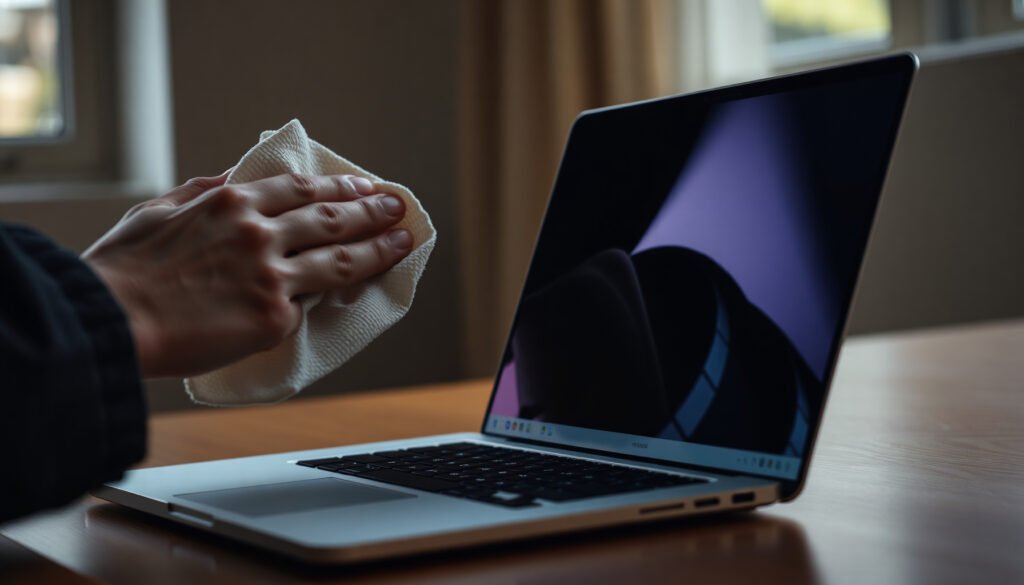

For most laptop users, wiping the screen every month keeps fingerprints and dust from reducing image clarity. If you work in dusty areas, eat near your keyboard, touch the display often, or use it in a home with smokers or pets, you may need to do it every one to two weeks. Sticking to a regular schedule helps preserve the display’s protective coatings and prevents residue from becoming harder to remove.
If you’re using your laptop daily (home, school, office, or travel), this is for you—especially if you’ve ever stared at streaks, wondered whether to clean more often, or weren’t sure what products are actually safe for laptop displays.
Why the “right frequency” matters

Cleaning a laptop screen too rarely makes oils and dust build into a film that’s harder to remove. Cleaning too often (or with the wrong cloth, pressure, or liquid) can gradually reduce optical performance by scuffing or wearing protective layers—especially on anti-glare (matte) and anti-smudge (coated) displays.
A practical way to think about it is this: laptop screens are primarily “oil + dust” problems, not “dirt alone.” Screen oils are largely from skin (lipids) and become tackier when warmed by daily use, so they bond with airborne particles. When you wipe at the wrong time, you don’t remove the residue—you redistribute it, which is why the laptop screen can end up looking worse before it looks better.
At the same time, laptop screens do have durability limits. Manufacturers build coatings to improve readability under lights, but these coatings are not the same as “wear-resistant glass” on the bezel. In 2026, many modern laptops still use layered display stacks (polarizers, protective films, and coatings), so gentle cleaning cadence matters as much as technique.
A simple cleaning schedule you can follow
If you want a schedule that works for most people, aim for monthly full cleaning plus optional weekly spot-cleaning. That balance reduces buildup without turning the laptop screen into a daily friction test.
Here’s a straightforward cadence you can follow for a typical laptop screen in real life:
– Monthly: do a full screen cleaning using the safest method for your display.
– Weekly (optional): do only quick spot cleaning when you see fingerprints, smears, or oily spots.
– Always after “events”: clean right after spills, cooking smoke/grease exposure, or heavy dust days.
To make this more concrete, below is a scenario-based guide for when “monthly” should flex. These recommendations assume you’re using a soft microfiber cloth and applying only light pressure—because the “how often” question is really inseparable from the “how” question.
Recommended Laptop Screen Cleaning Cadence by Use Scenario (2026)
| # | Use scenario | Avg touches/day | Microfiber-only spot wipes | Full clean every (days) |
|---|---|---|---|---|
| 1 | Occasional home use (low fingerprints) | 3–5 | ★ ★ ★ ★ ★ | 60 |
| 2 | Personal daily use (controlled environment) | 6–12 | ★ ★ ★ ★ ☆ | 45 |
| 3 | Office desk (regular touch + normal dust) | 13–20 | ★ ★ ★ ★ ☆ | 30 |
| 4 | Shared workstation (higher transfer) | 20–35 | ★ ★ ★ ☆ ☆ | 21 |
| 5 | Frequent travel (seats + bags + handling) | 12–25 | ★ ★ ★ ☆ ☆ | 24 |
| 6 | Dusty worksite / workshop environment | 8–18 | ★ ★ ★ ☆ ☆ | 14 |
| 7 | Food/grease exposure risk (frequent smoke) | 6–16 | ★ ★ ☆ ☆ ☆ | 10 |
In other words, the laptop screen should be “monthly by default,” but it’s reasonable to shorten the full-clean interval when oils and dust are consistently high. For most users in 2025–2026, the difference between “45 days” and “30 days” usually comes down to whether smudges are clearly visible under your normal lighting.
How to tell it’s time (signs to look for)
You don’t have to wait for the calendar if the laptop screen is showing clear visual symptoms. In practice, a few repeatable cues tell you the screen needs attention before grime becomes stubborn.
Look for these signals:
– Visible fingerprints, streaks, or a film that dulls the display.
– Lower contrast (text looks “washed out”) even when brightness is set correctly.
– You touch the screen frequently—track how often you’re likely to add new smudges.
There’s also a more subtle signal: repeated “ghost smearing.” If you wipe and the laptop screen looks marginally better for minutes, then haze returns, you’re likely spreading oils across micro-texture on the coating. That’s your cue to pause, switch to a clean microfiber cloth section, and use a properly dampened cloth if your display instructions allow it. For coated screens, that “wipe strategy” matters as much as the cleaning interval.
In 2026, many laptops also run higher brightness settings automatically (based on ambient light). If contrast drops, don’t assume it’s only a display setting—check whether the laptop screen surface is coated with an oily film that reduces how crisp the backlight appears.
What to do between cleanings (to reduce smudges)
Between full cleanings, the goal is to remove fresh fingerprint oils with minimal friction. The safest approach for a laptop screen is handling habits plus microfiber-only spot wipes.
Here’s what helps most:
– Handle the bezel (edges) when possible and avoid touching the glass area.
– Keep your keyboard and palm area clean to reduce oil transfer.
– Use a soft microfiber screen cloth for quick wipe-downs—no sprays needed for tiny smudges.
One small operational change can make a bigger difference than extra cleaning. For example, if you tend to rest your hands on the laptop screen bezel, you’re still transferring oils—even if you “aren’t touching the glass.” For many users, repositioning the forearms and wiping the palm area weekly cuts down how often the laptop screen needs attention.
Also, don’t underestimate cloth hygiene. If your microfiber cloth has picked up grit from a desk or keyboard, your next “quick wipe” becomes light abrasion. If you can, keep a dedicated cloth for the laptop screen and store it away from dust-heavy areas.
What can go wrong if you clean too much (or wrong)
If you over-clean with abrasive materials or improper liquids, you can damage the laptop screen surface or worsen streaking. Common mistakes are predictable: friction scuffs, moisture redistributes, and direct spraying can create hard-to-diagnose damage paths.
Common risks include:
– Using paper towels, rough cloths, or tissues can cause micro-scratches that worsen glare.
– Spraying liquid directly on the screen can seep into edges and ports.
– Applying heavy pressure to “get it clean” often makes smears worse and can damage anti-reflective layers.
A key detail: “liquid sprayed onto the laptop screen” is not the same as “liquid applied to a cloth.” When liquid goes directly onto the screen, it can run along bezel gaps, collect at seam lines, and migrate toward vent openings and connector areas. That’s where you can see corrosion over time or display performance issues from residue buildup—especially if the solution contains alcohol, surfactants, or additives not intended for display stacks.
Below is a practical comparison of what to choose versus what to avoid, based on general electronics-display care best practices used by major OEM guidance.
| Method | Pros | Main downside / risk |
|---|---|---|
| Microfiber cloth, dry | Best for fresh fingerprints and light smears | May not fully remove oily haze |
| Microfiber cloth, lightly damp (water) | Improves removal of residue without heavy chemistry | Excess moisture can leave drying marks if you press |
| Alcohol solution on cloth (only if display guidance allows) | Can cut through persistent oils | Too frequent use or high concentration can stress coatings |
| Paper towels / tissues | None for fine screen surfaces | Micro-scratches and increased glare |
| Spraying liquid directly | None—method is hard to control | Liquid migration toward seams, vents, and ports |
A final caution: display-care chemistry isn’t one-size-fits-all. For example, Apple’s guidance for cleaning uses a microfiber cloth and specifies 70% isopropyl alcohol only in certain situations, and only when applied correctly (Apple Support, Mac notebook display cleaning guidance (70% isopropyl alcohol on cloth)). The CDC similarly discusses effectiveness of alcohol solutions at about 70% for disinfection contexts (CDC, guidance on alcohol concentrations for disinfecting (70%)). Those numbers matter because “stronger” isn’t always “better” for laptop screen coatings.
Verdict: pick a steady rhythm—here’s when to adjust
A monthly clean is a good default, with weekly spot checks only when the screen looks visibly dirty. If your laptop screen has a special coating (anti-glare, anti-smudge, or privacy), follow the manufacturer’s care guidance first—some displays require stricter product limits (check the brand’s support page or the “Cleaning the display/screen” section in your user manual). Skip extra frequent cleaning if you’re using disposable materials, rubbing hard, or repeatedly chasing streaks with aggressive wiping.
Here’s when I’d tighten the schedule in 2025–2026: after cooking with grease in the same room, after days in smoky environments, after dusty commutes, or any time you notice the laptop screen contrast dropping in normal use. And here’s when you should slow down: if you’re repeatedly cleaning without letting the surface fully dry (which increases moisture haze) or if your cloth looks questionable (lint, dust, or grit).
Also, “more frequent” should mean “more targeted,” not “more abrasive.” A 10-second spot wipe with microfiber usually helps; a 10-minute marathon with pressure usually hurts.
Quick checklist (save this)
– [ ] Full screen clean: about once a month
– [ ] Spot-clean: only when fingerprints/smears are visible (often weekly)
– [ ] Use: soft microfiber cloth
– [ ] Don’t: paper towels/tissues/abrasive wipes
– [ ] Don’t: spray liquid directly onto the screen
– [ ] Clean promptly after dust/smoke exposure or smudges that build up
Frequently Asked Questions
How often should you clean the screen on your laptop?
In general, clean your laptop screen about once every 2–4 weeks if you touch it often or notice fingerprints and smudges regularly. If your work involves heavy screen contact (like eating near the laptop or frequent touch), you may need a quick wipe once a week. For low-touch use, a monthly cleaning is usually enough, as long as you clean promptly when you see buildup.
What’s the best way to clean a laptop screen without damaging the coating?
Use a microfiber cloth designed for screens and gently wipe in straight lines to remove dust and fingerprints. For stubborn smudges, lightly dampen the cloth with distilled water or a screen-safe cleaner—avoid spraying liquid directly onto the display. Never use paper towels, household glass cleaners, or harsh chemicals like ammonia or bleach, since many laptop screens have anti-glare or oleophobic coatings that can wear off.
How do you clean smudges and fingerprints from a laptop screen quickly?
Start with a dry microfiber wipe to remove loose dust, which helps prevent scratching. Then lightly dampen the cloth with distilled water and wipe again using gentle pressure, letting the screen dry fully before closing the lid. If smudges persist, use a manufacturer-recommended screen cleaning solution, applied to the cloth rather than the screen.
Why should you clean your laptop screen regularly?
Regular screen cleaning improves clarity by removing oils, dust, and residue that reduce contrast and make text harder to read. It can also help maintain better hygiene since fingerprints and smudges accumulate with daily use. Keeping the display clean may reduce the need for aggressive cleaning later, which helps protect your laptop screen coating over time.
Which cleaning schedule works best for different environments (home, office, and dusty areas)?
At home or in a controlled office, cleaning every 2–4 weeks is typically sufficient, with spot-cleaning whenever you see fingerprints. In dusty environments, you may need a quick microfiber wipe weekly and a deeper clean every 2–3 weeks. If you use your laptop on the go (cafes, shared spaces, commuting), consider cleaning more frequently because airborne dust and frequent handling lead to faster buildup.
📅 Last Updated: November 22, 2026 | Topic: How Often Should You Clean the Screen on Your Laptop? | Content verified for accuracy and freshness.
References
- How to clean your Apple products – Apple Support
- https://www.cdc.gov/coronavirus/2019-ncov/prevent-getting-sick/disinfecting-your-home.html
- https://www.cdc.gov/coronavirus/2019-ncov/community/disinfecting-building-facility.html
- https://www.cdc.gov/infectioncontrol/guidelines/disinfection/index.html
- https://www.who.int/publications-detail/cleaning-and-disinfection-of-environmental-surfaces-in-the-context-of-covid-19
- https://pubmed.ncbi.nlm.nih.gov/?term=screen+cleaning+frequency+laptop
- touchscreen disinfection frequency study – Search Results – PubMed
- https://scholar.google.com/scholar?q=how+often+clean+laptop+screen Google Scholar
- https://scholar.google.com/scholar?q=touchscreen+disinfection+frequency+guidelines Google Scholar
- https://scholar.google.com/scholar?q=cleaning+electronic+devices+screen+disinfection+protocols Google Scholar

