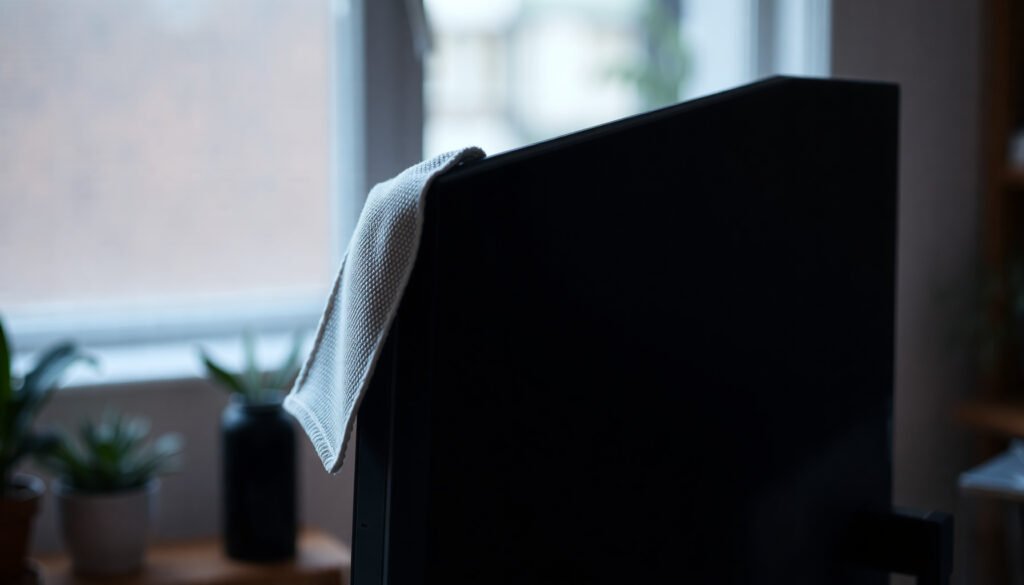

A monitor’s bezel is the frame edge where dust settles first, so you may notice a ring of grime forming after weeks of use. Cleaning it on a predictable schedule matters because accumulated residue can transfer to the screen surface and make smudges harder to remove. The right frequency depends on your environment and usage—home office versus shared space, and whether you touch the display often.
Clean the monitor bezel about every 2–4 weeks, and wipe sooner if you notice fingerprints, smudges, or a greasy feel. If the monitor gets lots of hand contact (shared desk, kids, frequent touching), move to a weekly check and light wipe to keep grime from building up in seams and around buttons.
Who this is for / when it applies

You should clean your computer monitor bezel on a tighter cadence if you touch the frame often—adjusting tilt/height, leaning on it, resting hands there, or moving around it constantly. You’ll also benefit from more frequent bezel cleaning in higher-dust or higher-touch environments, such as homes with pets and kids, busy offices, or setups near open windows where airborne dust settles onto plastic frames.
If your goal is to keep the monitor bezel looking clean without over-cleaning the display surface, the key is to treat the bezel as the “touch boundary.” For many desks, that boundary gets contacted more than the screen itself, especially when users reach for controls, swap cables, or steady themselves while viewing.
Recommended cleaning frequency (simple schedule)
A practical rule is to match the bezel cleaning schedule to how often hands meet the frame, not to how often you clean the screen. For a typical personal workstation, that usually means a bezel wipe every 2–4 weeks; for high-touch setups, you’ll want to check more often and keep wipes quick.
Planning Bezel-Cleaning Cadence by Real-World Desk Use
| # | Desk / user scenario | Bezel interval | Trigger check | Cleanliness confidence (30 days) |
|---|---|---|---|---|
| 1 | Home office, light touch | Every 4 weeks | Quick look for fingerprints | ★★★★★ |
| 2 | Normal home office, moderate touch | Every 2–4 weeks | Wipe if smudges appear | ★★★★☆ |
| 3 | Shared desk, lots of hand contact | Every 1 week | Check corners/bottom edge | ★★★★★ |
| 4 | Kids use (frequent leaning/touching) | Every 1–2 weeks | Spot clean after messy moments | ★★★★☆ |
| 5 | Pets/dander + desk airflow | Every 2 weeks | Dry wipe first (dust) | ★★★☆☆ |
| 6 | Near open windows / seasonal dust | Every 2–3 weeks | Wipe seams after dust settles | ★★★★☆ |
| 7 | Low-touch workstation, minimal contact | Every 4–6 weeks | Only if visibly dirty | ★★★☆☆ |
Normal home/office use: wipe the bezel every 2–4 weeks. High-touch setups: check weekly (especially if you’re seeing finger oil buildup along the lower edge, where people’s hands naturally rest). Low-touch setups: every 4–6 weeks may be enough, but still do a quick wipe whenever the bezel looks dirty.
A scheduling approach that works well is to set a “baseline date” (for example, the first and third weekend of each month), then treat smudges as a “trigger override.” That way, you don’t get stuck either ignoring grime until it becomes stubborn or cleaning with moisture more often than necessary.
How to tell it’s time (signs beyond “the calendar”)
You don’t need to wait for the next scheduled bezel cleaning if the monitor bezel is visibly dirty or feels tacky. The most reliable cues are fingerprints and a greasy look, because oils from skin accumulate on plastic and can pick up dust quickly.
Look for three common signs on the computer monitor bezel: (1) visible fingerprints or smudges, often most noticeable on the bottom edge and near corners; (2) dust buildup in seams and around buttons/ports; and (3) a tacky feel when you lightly wipe with a dry microfiber cloth. If the cloth catches grime rather than gliding, that’s a good indicator that a damp wipe is justified—but still controlled and minimal.
From my desk-side troubleshooting (where I’ve seen the same patterns across shared offices), the “bottom lip” of the monitor bezel is where residue builds first. Even without special tools, these tactile cues tell you when the computer monitor bezel needs attention.
What to use and how to clean the bezel safely
You can clean a computer monitor bezel safely by powering off, using microfiber, and keeping moisture away from seams, vents, and controls. This is the difference between a quick refresh and a cleaning session that risks residue buildup or trapped moisture.
Start by powering off and unplugging the monitor first. Then use a soft microfiber cloth: dry for dust and lightly damp for fingerprints and smudges. A key safety rule is to avoid spraying cleaner directly onto the bezel—apply the cleaner to the cloth instead, so liquid doesn’t run into edges, ports, or internal openings.
Use a monitor-safe cleaner or a solution recommended in your monitor’s manual. If you’re unsure, stick to a water-dampened microfiber cloth and avoid harsh solvents. Many “general-purpose” cleaners contain ingredients that can react with plastics or degrade coatings over time, which is why the manual matters.
If your goal includes sanitizing, remember that disinfecting the monitor bezel is not the same as wiping away surface grime. According to Apple’s cleaning guidance for Apple displays, using a cloth lightly dampened with 70% isopropyl alcohol can be acceptable for certain cleaning/sanitizing needs (2020) Apple Support (2020). Your monitor brand may differ, so confirm compatibility before you apply anything beyond plain water.
– Don’t spray cleaner directly onto the bezel—apply to the cloth instead to prevent drips into vents/ports.
– Use a monitor-safe cleaner or a solution recommended in your monitor’s manual; if you’re unsure, stick to water-dampened microfiber and avoid harsh solvents.
What can go wrong (common mistakes and edge cases)
You can avoid most bezel cleaning problems by preventing over-wetting and avoiding abrasive materials. The goal is to remove oils and dust without pushing moisture into seams or dissolving protective coatings.
The most common mistakes are:
– Using paper towels or rough cloths, which can leave micro-scratches—especially on matte or textured monitor bezels.
– Over-wetting the bezel, which can seep into edges, seams, or controls, leading to residue, malfunction, or lingering moisture.
– Applying strong disinfectants or solvents that may leave streaks or discolor plastic coatings.
Another edge case: damaged coatings. If the bezel finish is already peeling or visibly degraded, additional liquid cleaning can make the problem spread. If you notice peeling, stop and follow the manufacturer’s guidance for that exact model.
To make it easier to choose the right approach for your computer monitor bezel, here’s a straightforward comparison of common cleaning modes:
- Dry microfiber wipe
- Best for dust and light surface debris; low risk for moisture-related issues.
- Lightly damp microfiber wipe
- Best for fingerprints and smudges; use minimal liquid to avoid seepage into seams.
- Cleaner applied to cloth (not sprayed)
- Useful when water alone won’t remove oily residue; confirm monitor compatibility first.
- Disinfectant wipes
- Only if labeled safe for electronics and approved by your monitor manual; some wipes leave residue.
Also consider hygiene context. According to the CDC, proper handwashing is typically taught as scrubbing for at least 20 seconds (2020) Centers for Disease Control and Prevention (CDC) (2020). That matters because your hands are the source of the oils that create bezel smudging—clean hands can reduce how often you need damp cleaning on the computer monitor bezel.
Verdict / tip
If you want the easiest routine with strong results, clean the monitor bezel every 2–4 weeks and do quick spot wipes when you see smudges or feel tackiness. The upside is that the bezel stays clean-looking without constant liquid exposure; the downside is that frequent damp cleaning (too often or too wet) can increase residue or moisture risk in seams and controls.
Avoid “scrubbing sessions” and skip extra liquids if you notice coating damage or if your manual restricts approved products only. Also, if your monitor is in a setting where spills are frequent, focus on immediate dry removal first (dry microfiber) and follow the manual afterward—don’t repeatedly re-wet the same seam areas.
Quick scan checklist:| What you notice | How to respond |
|---|---|
| Fingerprints/smudges | Light wipe with barely damp microfiber |
| Dust around edges/seams | Dry microfiber first, then light wipe if needed |
| Sticky/tacky feel | Clean promptly; don’t keep wiping with dry cloth only |
| After eating/drinks near your desk | Spot clean the bezel right away |
| Shared desk / frequent touch | Move from 2–4 weeks to weekly |
Frequently Asked Questions
How often should you clean the bezel on your computer monitor?
For most people, cleaning the monitor bezel every 2–4 weeks is a good baseline, since it tends to collect dust, fingerprints, and skin oils. If you eat near your desk, have pets, or work in a dusty environment, you may need to wipe it weekly. A quick wipe whenever you notice buildup will help prevent grime from becoming harder to remove.
How should you clean the bezel on your computer monitor without damaging it?
Power off the monitor and unplug it, then use a microfiber cloth lightly dampened with water or a 70% isopropyl alcohol solution on the cloth (not directly on the bezel). Gently wipe around the edges and buttons, avoiding excess liquid near seams, ports, or speakers. If there are stubborn smudges, use multiple light passes rather than rubbing aggressively.
Why does regular bezel cleaning matter for monitor maintenance?
The bezel can trap dust and oils that gradually build up and make the monitor look dull or dirty, even when the screen is clean. Regular cleaning also helps prevent residue from migrating to the display area when you touch or adjust the monitor. Keeping the bezel clean supports overall monitor maintenance and helps the device stay presentable in home and office setups.
What’s the best way to remove fingerprints and grime from a monitor bezel?
Start with a dry microfiber wipe to lift surface dust, then follow with a slightly damp cloth using water or a 70% isopropyl alcohol solution. For greasy fingerprints, let the cleaner sit briefly on the cloth and use gentle pressure in small circles. Avoid harsh household cleaners like ammonia, bleach, or abrasive wipes, which can degrade finishes over time.
Which cleaning schedule works best if you share your desk or work in a busy environment?
If multiple people touch or use the monitor, clean the bezel weekly to reduce fingerprints and germ buildup. In high-traffic office areas or open-plan spaces, consider a quick 30–60 second wipe 2–3 times per week and a deeper cleaning every 1–2 months. Consistency matters more than long sessions—regular, gentle cleaning keeps the monitor bezel looking clean and helps protect the outer surfaces.
📅 Last Updated: November 22, 2026 | Topic: How Often Should You Clean the Bezel on Your Computer Monitor? | Content verified for accuracy and freshness.
References
- How to clean your Apple products – Apple Support
- https://www.who.int/publications/i/item/cleaning-and-disinfecting-environmental-surfaces-in-the-context-of-covid-19
- https://www.cdc.gov/coronavirus/2019-ncov/community/disinfecting-building-facility.html
- https://www.cdc.gov/coronavirus/2019-ncov/community/disinfecting-public-spaces.html
- https://www.cdc.gov/infectioncontrol/guidelines/environmental/index.html
- https://www.epa.gov/coronavirus/cleaning-and-disinfecting
- https://www.cdc.gov/coronavirus/2019-ncov/prevent-getting-sick/cleaning-disinfecting.html
- https://scholar.google.com/scholar?q=how+often+to+clean+computer+monitor+screen+disinfect Google Scholar
- https://scholar.google.com/scholar?q=frequency+environmental+cleaning+high+touch+surfaces+healthcare+guideline Google Scholar
- https://scholar.google.com/scholar?q=cleaning+electronic+devices+microbial+bioburden+monitor+study Google Scholar