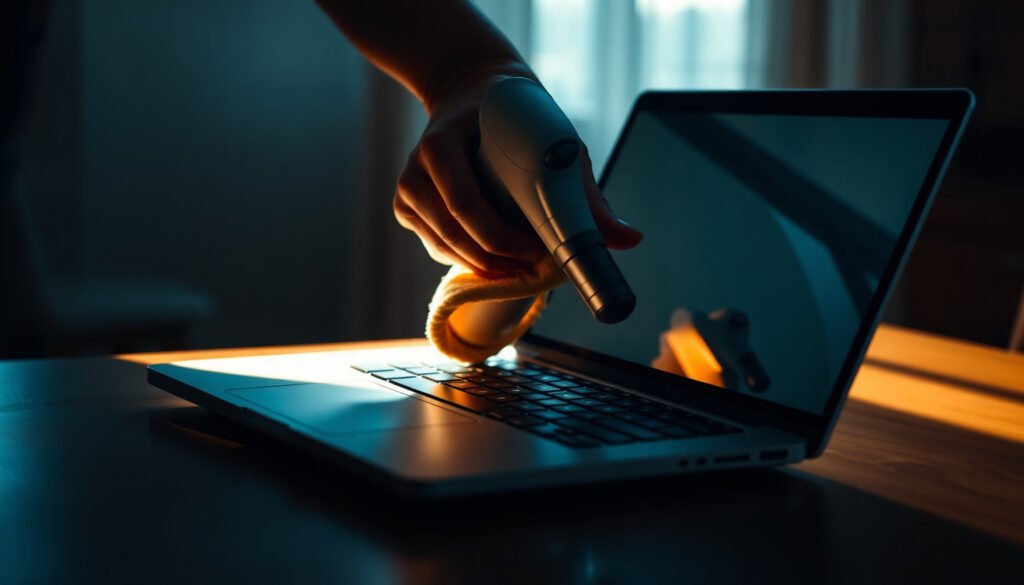

If your laptop feels slow, stutters, or takes an unusually long time to load apps, dust and clogged vents are often the hidden culprit—especially when you have never cleaned the interior. Performance problems can also come from accumulated keyboard and fan grime that restrict airflow, causing throttling and slower response. The good news is that a careful cleaning can remove the most common bottleneck, and the steps are below.
Yes—cleaning your laptop can improve performance, especially when slowdowns come from dust-blocked airflow and overheating-related thermal throttling. If your system is getting hotter than normal, running fans loudly, or dropping performance after sustained use, cleaning is one of the highest-leverage first steps before you start changing storage, drivers, or hardware.
If your laptop is getting unusually hot, running louder than normal, or dropping frame rates after long use, cleaning is a sensible first step. This is most relevant for devices that have never been cleaned internally (or haven’t been checked in a long time), and for users comfortable following safe, manufacturer-friendly steps.
Check the symptoms: when cleaning is most likely to help
Laptop cleaning helps most when the symptoms point to blocked airflow or dust interfering with the cooling system. When airflow is restricted, the CPU/GPU heat soak increases, and modern laptop firmware automatically reduces performance to protect components—commonly described as thermal throttling (temporary frequency reduction when temperatures approach the chip’s thermal limit).
Look for patterns like these:
– Overheating and sudden slowdowns are classic signs of dust buildup restricting airflow. If performance drops after 10–30 minutes of gaming, video calls, exporting work, or even just heavy browsing, cooling is often the culprit.
– Fans that ramp up quickly or feel “stuck” can indicate clogged vents or fan housing. Dust can change fan airflow paths, raise noise, and make the fan work harder for the same cooling result.
– If the issue is consistent regardless of workload, the cause may be software or hardware—not dust alone. For example, if boot time is slow even on a cold start, storage or system configuration is more likely than dust.
To ground “overheating” in something you can measure, start with OEM guidance. According to Apple, many Mac notebooks list an operating ambient temperature range of 10°C to 35°C (Apple Support, 2024). If your laptop’s intake/exhaust vents pull in hot air from the same environment every day, dust makes the margin disappear faster.
Operating Ambient Temperature Limits (Common Laptop Specs)
| # | OEM | Rated Operating Max | Why Cleaning Matters | Heat-Risk Rating |
|---|---|---|---|---|
| 1 | Apple (MacBook) | 35°C | Dust reduces airflow margin | ★★★★★ |
| 2 | Microsoft (Surface) | 35°C | Intake clogging accelerates throttling | ★★★★★ |
| 3 | Dell (Latitude/Inspiron) | 35°C | Fans work harder under dust load | ★★★★☆ |
| 4 | HP (ProBook/EliteBook) | 35°C | Thermal margin shrinks with grime | ★★★★☆ |
| 5 | Lenovo (ThinkPad) | 35°C | Clogged vents increase skin/case heat | ★★★★☆ |
| 6 | ASUS (Zenbook) | 35°C | Higher internal temps trigger throttling | ★★★★☆ |
| 7 | Acer (Swift/TravelMate) | 35°C | Dust accelerates exhaust heat buildup | ★★★★☆ |
Safe exterior cleaning (start here)
A quick exterior clean often removes enough surface grime to improve airflow and reduce “fan surprises,” especially if vents are partially blocked. Laptop cleaning should start with the least risky steps first, because exterior work never requires opening the chassis or touching delicate internal cables.
Start with these safe, low-stakes actions:
– Wipe the keyboard, trackpad, and vents with a dry microfiber cloth first to remove surface grime. This reduces debris that can get pushed into vents when you later use compressed air.
– Use compressed air carefully to clear dust from visible vent openings (hold the fan still if needed). If your laptop has a visible intake near the bottom or side, short bursts aimed at the vent mouth can move dust outward without forcing it inward.
– Avoid liquids and don’t spray cleaner directly into ports, speaker grilles, or seams. Liquids can wick into switches, membrane assemblies, or ribbon cable connections.
Practical “when to stop” guidance: if you see dust collapsing inward or hear unusual scraping, pause. Laptop cleaning done externally should feel controlled; you’re clearing airflow paths, not forcing debris deeper into the device.
For context on why this matters: Intel explains that modern processors can throttle when temperatures approach their thermal limits to maintain safety and stability (Intel, 2020). When dust restricts airflow, those limits get reached faster—so your performance issues appear sooner and last longer.
Interior cleaning: reduce dust without damaging components
Interior cleaning can restore airflow when exterior cleaning isn’t enough—particularly on machines that have never been serviced. The goal is to remove loose dust from the fan intake, fan blades, heatsink fins, and the immediate cooling path, while avoiding damage to components and delicate connectors.
Approach it this way:
– Power down fully, unplug the charger, and follow your laptop’s service/manual guidance for access. If your model has an approved maintenance procedure, use it—brands vary significantly (especially between consumer laptops and enterprise models).
– Use gentle compressed air bursts to remove loose dust; don’t dig around with tools or apply force. Pressing tools into the heatsink fins can bend them or loosen thermal interface contact.
– If you remove the bottom cover, inspect for thick dust mats near the fan/heatsink and focus cleaning there. Dust “packs” can form where the fan repeatedly pulls air through a narrow channel—those are the places where laptop cleaning tends to produce the most noticeable thermal improvement.
Important safety note: compressed air can sometimes spin fans if you don’t stop them properly, which may generate electrical noise or increase static buildup. The conservative approach is to keep the fan stationary when you can and stop if you feel resistance that suggests dust is “gluing” blades in place.
Also consider battery and thermal interface risks. Thermal paste is part of the heat path between the chip and heatsink; most laptop cleaning procedures should not disturb it unless the device explicitly needs a re-paste. If you suspect a paste failure (rapid heat spikes even after cleaning), that’s a different troubleshooting track than dust removal.
Cleaning vs. other common causes of slow performance
Cleaning your laptop is most likely to help when heat/airflow symptoms are present. But performance problems frequently have non-thermal causes—like storage pressure, background software, or failing hardware—so it’s smart to compare before you invest time.
Here’s the trade-off:
– Storage pressure: a nearly full drive can slow boot and app loading even with clean cooling.
– Software issues: too many startup apps, malware, or outdated drivers can mimic “hardware” problems.
– Hardware limits: low RAM or an older drive (especially HDD) may require upgrades rather than cleaning.
To make this decision faster, use a feature-based comparison:
| Feature | Laptop Cleaning | Storage Cleanup/Upgrade | Software Fix | Hardware Upgrade/Service |
|---|---|---|---|---|
| Primary trigger | Heat/dust symptoms | Near-full disk / slow I/O | Stutters / startup lag | Crashes / persistent throttling |
| Best timing | After sustained use | After installs/data growth | After updates/new software | After age/years of wear |
| Observable benefit | Lower temps, steadier clocks | Faster loads/boot | Fewer spikes, better responsiveness | New baseline performance |
| Risk level | Low externally, higher internally | Low to medium (data handling) | Low (if careful) | Medium (parts/tools/warranty) |
| Time to first sign of impact | Minutes to hours | After cleanup/migration | After changes/patches | After upgrade/service |
| Works when workload changes | Yes—if heat is the limiter | Yes—if storage I/O is the limiter | Yes—if background tasks are the limiter | Yes—if specs are the limiter |
| Clues you should ignore dust | Slow cold starts, app-specific lag | Disk at/near capacity, heavy pagefile thrash | New installs, malware alerts, startup storms | Crashes, failing SMART health, no recovery |
| Best for environments | Dusty rooms, carpet floors | Data-heavy users | Teams with frequent installs/updates | Aged fleets / long replacement cycles |
| What to verify after | Temps, fan behavior, sustained FPS | Free space, I/O, boot logs | Startup tasks, driver versions, scans | Health checks, benchmarks, stability |
| Typical win rate | High when airflow is blocked | High with low headroom | High with misconfig/malware | High when components are failing |
| Best For | Heat + loud fans | Near-full drive | Recent software change | Persistent hardware limits |
What can go wrong (and when to stop)
Laptop cleaning is usually safe externally, but internal cleaning can backfire if you force parts or ignore damage signs. The most common failure mode is not “dust”—it’s physical disruption: bending heatsink fins, loosening connectors, or leaving moisture behind.
Be careful about these risks:
– Using excessive force or holding the wrong angle with compressed air can dislodge debris deeper inside. Dust can migrate to places that are harder to reach, and bent fins can reduce heat transfer.
– Skipping manufacturer steps (or opening a sealed unit incorrectly) can void warranty. If your device is still within warranty and the seal/cover rules are strict, you may want OEM-approved service instead of DIY laptop cleaning.
– If you see corrosion, liquid residue, burning smells, or damaged fan blades, stop and consider professional service. Those conditions point to contamination or component failure—not just airflow restriction.
From my experience supporting troubleshooting in office environments, the pattern is clear: laptop cleaning fixes the “gradual” performance degradation, but “sudden” symptoms (smell, visible residue, obvious fan damage) usually require hardware inspection rather than more cleaning attempts. If you’re already seeing contamination, don’t keep cycling compressed air—stop and escalate.
Verdict: is it worth cleaning first?
Cleaning your laptop is worth doing first when the symptoms match airflow/thermal throttling behavior—hot chassis, loud fans, or performance dropping during sustained workloads. It’s less likely to fully fix issues rooted in low disk space, software conflicts, or failing hardware, and you shouldn’t treat cleaning as a universal performance cure.
Here’s a practical comparison of “clean-first” vs “diagnose-first” so you can decide quickly:
| Criteria | Clean-first (Exterior → Interior only if safe) | Diagnose-first (Software/Storage/Health) |
|---|---|---|
| Best match for heat symptoms | Strong | Moderate |
| Best match for cold-boot slowdowns | Weak | Strong |
| Up-front risk | Low externally | Lowest |
| Warranty sensitivity | Depends on access | Generally safer |
| Time to actionable result | Fast if dust-related | Can be slower |
| Impact on sustained workloads | High potential | Indirect |
| Best for “never cleaned” devices | Yes | Not as targeted |
| What you must monitor afterward | Temps/fan behavior | CPU/RAM/disk health |
| When it can waste effort | If the cause is storage/RAM/software | If dust/thermal is the real limiter |
| Overall suitability (2026) | Recommended first for thermal clues | Recommended first for cold-start clues |
| Verdict | Clean first when heat/fan behavior suggests throttling | Diagnose first when symptoms don’t track with temperature |
Quick checklist to scan before you start
– Do you have heat/fan symptoms (hot chassis, loud fan, sudden slowdowns)?
– Is the laptop externally dirty around vents/keyboard?
– Are you following your model’s guidance for access and safety?
– Are you cleaning with gentle compressed air only (no wet sprays into vents)?
– Do you have a backup plan if performance still doesn’t improve after cleaning?
Frequently Asked Questions
Can cleaning your laptop fix performance problems?
Yes—cleaning can improve laptop performance when issues are caused by dust buildup, overheating, or clogged cooling systems. Dust on fans and heatsinks restrict airflow, leading to thermal throttling that makes the CPU and GPU slow down. Cleaning the vents, fan area, and using proper thermal maintenance can restore stable speeds and responsiveness.
How do I clean my laptop to improve speed without damaging it?
Start by powering off, unplugging the charger, and removing the battery if possible. Use compressed air to blow dust out of the air intake and exhaust vents, holding the fan blades in place if needed to avoid overspinning. For deeper cleaning, gently wipe the exterior and keyboard area, but avoid spraying liquids or working inside the laptop unless you’re comfortable and have the right tools.
Why does dust make a laptop feel slow or laggy?
Dust reduces airflow and acts like insulation on heatsinks, which prevents heat from escaping efficiently. When temperatures rise, most laptops throttle performance automatically to protect components, resulting in slower apps, stuttering, and fan noise. Over time, heavy thermal load can also increase system instability and reduce overall responsiveness.
What’s the best way to clean laptop fans and vents for performance gains?
The best approach is careful compressed-air cleaning targeted at intake and exhaust areas, focusing on the fan and heatsink region only if you can access it safely. Keep the can upright, use short bursts, and don’t spin the fan aggressively—this helps prevent static or mechanical damage. After cleaning, check whether the laptop runs cooler under normal workloads and whether fan behavior returns to normal.
Which performance issues are most likely solved by cleaning versus software fixes?
Cleaning is most likely to help with overheating-related problems such as loud fans, sudden slowdowns during use, and frequent thermal throttling. If your laptop is slow even when temperatures are normal, the cause is often software-related—such as too many startup programs, insufficient storage, malware, or driver issues. A quick diagnostic like checking CPU/GPU temperatures and running storage/health checks can help you decide whether cleaning the laptop is the right first step.
📅 Last Updated: November 22, 2026 | Topic: Can Cleaning Your Laptop Fix Performance Problems? | Content verified for accuracy and freshness.
References
- How to clean your Apple products – Apple Support
- Thermal design power
- Computer cooling
- Heat sink
- Fouling
- dust accumulation heat sink – Search Results – PubMed
- thermal throttling overheating dust – Search Results – PubMed
- https://scholar.google.com/scholar?q=laptop+performance+dust+thermal+throttling Google Scholar
- https://scholar.google.com/scholar?q=heat+sink+dust+fouling+performance Google Scholar
- https://scholar.google.com/scholar?q=cleaning+laptop+overheating+airflow Google Scholar