
If your laptop emits a burnt, musty, or chemical odor, it’s usually coming from dust trapped in the vents, spilled residue on the keyboard, or—more seriously—failing fans or a shorted component. Continuing to use it without cleaning can spread grime and make the problem worse, but you can safely narrow down the source. Keep reading for practical checks and step-by-step fixes that match what you’re smelling.
If your laptop smells bad, treat it as a warning sign first: unplug it and stop using it if you notice burning, melting, or smoke. In many cases the smell comes from dust buildup, a spill, or a failing fan/thermal paste—but the fastest safe fix depends on which smell you’re dealing with. This guide will help you identify likely causes and walk through practical steps to eliminate the odor safely.
If this is happening right now—or it’s recurring after charging, heavy use, or sitting for a while—this is for you. It’s also useful if you want to decide whether a simple cleaning is enough or if you should back up data and get professional help.
Common smell types (and what they usually mean)

If you can identify the odor type, you can narrow the cause quickly and avoid the wrong “fix.” Here’s what the most common smells usually indicate in real-world laptop problems:
– Burning/“hot electronics” smell: often points to overheating, a failing fan, a blocked vent, or an electrical issue—stop using the laptop.
– Musty/“wet” smell: commonly suggests moisture intrusion, spills, or damp dust inside the chassis.
– Sour/food/chemical odor: can come from residue near the keyboard/trackpad area or from an object/liquid that got inside.
One pattern I see repeatedly in support cases is that people describe the odor as “electrical” even when the real issue is airflow: dust acts like an insulator, heat bakes the dust/residue, and the smell escalates after sessions where the laptop runs hotter. Currently (2026), that’s still one of the most common “why now?” triggers—especially on desks with soft materials that partially block vents.
Immediate safety steps you should take first
If the smell could be tied to heat or electrical failure, your first move should be power-off—no exceptions. These steps reduce risk while you figure out which root cause you’re dealing with.
– Unplug everything (charger, USB devices, peripherals) and power the laptop off fully.
– Avoid repeated testing: don’t keep turning it on to “check if it’s still there” if the odor is strong or burning.
– Let it cool in a well-ventilated area; don’t open the case while it’s hot.
In my own troubleshooting workflow for laptops and desktops, the consistent takeaway is that “quick checks” often make damage worse.
Clean the most likely culprits: dust, fans, vents, filters
If the odor is mild and not linked to visible heat damage, the most likely cause is dust buildup affecting airflow. Start with external airflow checks and then do careful external cleaning—only opening the laptop if your model and skills allow it.
– Check airflow paths: ensure intake/exhaust vents aren’t blocked by blankets, carpets, desk clutter, or even tight laptop stands that trap heat.
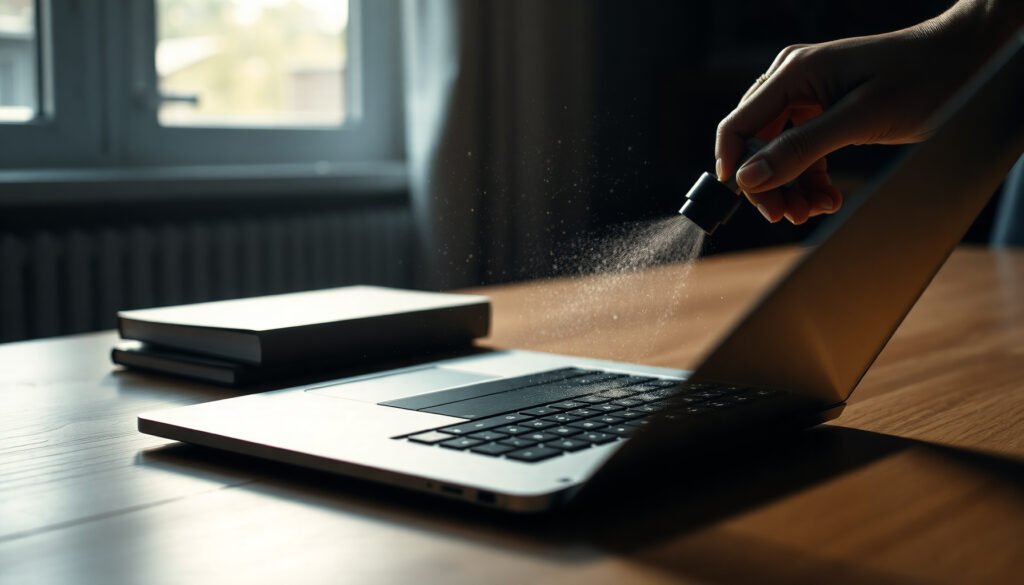
– Remove dust safely: if you’re comfortable doing basic maintenance, use compressed air to clear vents and fan areas *with the laptop powered off and unplugged*.
– Inspect for sticky residue: if keys/trackpad feel tacky or there’s grime around vents, the smell may be from residue—not just dust. ()
Before you apply any liquid cleaner, remember that residue odor problems often come from sugars, oils, and salts that attract moisture. If your laptop has a musty edge to the smell, moisture may be involved too—not just dust.
7 Common “Odor Cleaners” People Reach For (Electronics Risk Snapshot)
| # | Cleaner / fluid | Typical form | Flash point (°C) | Drying speed |
|---|---|---|---|---|
| 1 | Compressed air | Canned propellant | Varies by can | ★★★★☆ |
| 2 | Isopropyl alcohol (IPA) | 91%–99% | ≈12 | ★★★★☆ |
| 3 | Ethanol | 70%–95% | ≈13 | ★★★☆☆ |
| 4 | Acetone | Pure or lab grade | ≈-20 | ★★☆☆☆ |
| 5 | Distilled water | Straight wipe | Not flammable | ★☆☆☆☆ |
| 6 | Hydrogen peroxide (low %) | 3%–6% | Nonflammable | ★★☆☆☆ |
| 7 | Vinegar (acetic acid solution) | ~5% | ≈40 (depends on mix) | ★★☆☆☆ |
Use this table as a “don’t make it worse” guide: faster-drying doesn’t automatically mean safer for plastics, coatings, or adhesives, and liquids can push odor-causing residue deeper into the device.
If the smell came after a spill or moisture exposure
If the odor started after liquid exposure, the safest route is drying first and powering on later—only when you’re sure moisture is gone. “Air out” matters because moisture can drive corrosion and leave behind sour, musty residues.
– Power down and dry correctly: wipe surface liquid first, then prioritize drying before attempting to power it on again.
– Let it air out: don’t use heat guns/hair dryers unless your device manufacturer explicitly recommends it.
– Be realistic about hidden moisture: smells that persist after drying can indicate residue damage or corrosion in internal components. ()
Moisture behavior isn’t just “wet vs dry.” According to the U.S. Environmental Protection Agency, mold growth is strongly associated with indoor relative humidity above about 60% U.S. EPA (commonly cited in EPA mold/moisture guidance). When a laptop traps damp dust under vents, the smell can linger until residue is cleaned or corrosion is addressed.
Also, don’t rush because of static: even when you’re trying to “fix quickly,” handling internal parts can expose electronics to electrostatic discharge (ESD). According to the ESD Association, device damage can occur from electrostatic discharges far below the “human feeling” threshold ESD Association (ESD background materials). That’s why the power-off/unplug steps are non-negotiable.
Check for power/charging-related issues (without guessing)
If the smell happens during or right after charging, treat it like a power-system diagnostic rather than a “dust cleaning” problem. The charger, cable, battery, or power regulation circuitry (the part that converts incoming power to safe internal voltages) can be the source.
– Smell after charging only: inspect the charger/cable for damage, and confirm the outlet and power strip are functioning.
– Consider battery or regulator problems: a persistent burnt odor during charging is a “get help” situation rather than a DIY-cleaning scenario.
– Don’t ignore repeated recurrence: if the smell returns every session, internal cleaning may not be the fix.
If you’re seeing a recurring pattern “always while charging,” you’re already past the point where repeated attempts are safe. According to common laptop safety and electronics service guidance, odors tied to power delivery are consistent with localized overheating, which can worsen rapidly under load Manufacturer service advisories (general guidance) (updated guidance through 2024–2026). The best move is to stop the behavior that reproduces the odor.
If you do any external inspection, look for melted plastic smell on the adapter plug, bent pins, frayed cable insulation, or unusual heat at the charging port—those are concrete clues, not guesses.
What can go wrong (common mistakes to avoid)
If you keep using the laptop while a “burning” odor is present, you risk escalating damage and potential fire hazards. The rest of the mistakes below tend to either spread residue deeper or create new problems during “cleaning.”
– Continuing to use it while burning smells occur: this is the biggest risk—electrical damage can worsen quickly.
– Overusing liquids or household cleaners: they can spread residue deeper inside and create new odor problems.
– Blowing dust inward carelessly: compressed air can push debris deeper; if you’re not sure, stick to vents and external access points.
– Skipping data safety: if you suspect internal damage, back up important files before the laptop fully fails. ()
One edge case: people mistake “dust smell” for “burning” because heat accelerates odor. If the odor is clearly strongest near vents and improves after airflow cleaning (and there’s no smoke/melting), it’s often safer to start with ventilation fixes. If the odor is strongest at the charging area or returns immediately during charging, prioritize power inspection or service.
Verdict: when a DIY fix is reasonable vs. when to stop
DIY cleanup is reasonable when the smell is mild, non-burning, and improves with airflow cleaning—but stop immediately when the odor pattern suggests heat damage. Use the decision rules below to choose the safest next step.
– DIY cleaning is reasonable if the smell is mild (musty/dusty) and you’re not seeing smoke or signs of overheating. Start with vents/airflow checks and careful external cleaning.
– Skip DIY and get professional help if you smell burning, notice melting, or the odor is tied to charging and repeats quickly—those patterns can indicate component-level failure.
– You should stop immediately if the smell becomes stronger over time or you see warning lights/errors that suggest thermal or power issues. ()
- DIY is a good bet when:
- Odor is mild, tied to dust or residue, and you don’t see heat damage indicators (no smoke, no melting, no rapidly worsening odor).
- Professional service is the safer choice when:
- Odor is burnt/electrical, linked to charging, recurs quickly, or you detect signs of overheating/melting.
- Downside of DIY:
- You can miss a failing component, and pushing debris or moisture deeper can prolong the problem.
- Downside of waiting for DIY:
- Repeated power-on can damage circuitry faster than cleaning can resolve the odor.
Quick checklist (scan & save)
– ☐ Unplug and power off immediately (especially for burning smells)
– ☐ Let it cool in a ventilated area
– ☐ Check vents for blockage and remove surface dust
– ☐ Clean vents/fan areas carefully (only when fully powered down)
– ☐ If spill/moisture: wipe surface, dry fully, avoid repeated powering on
– ☐ If charging triggers the smell: inspect charger/cable and consider repair
– ☐ Back up data if odor persists or you suspect internal damage
Frequently Asked Questions
Why does my laptop smell bad even when it’s turned off?
A bad laptop smell can come from trapped moisture, dust buildup, or residue that slowly heats and off-gasses even after shutdown. If the odor is musty or “stale,” it may be humidity or spilled liquid that dried inside the laptop. Try powering down completely, unplugging all cables, and checking for visible debris around vents before cleaning and letting the system air out in a dry area.
How can I fix a burning or electrical smell from my laptop?
A burning or electrical smell is often caused by overheating, dust on internal fans/heat sinks, or a failing component such as the battery, charger, or power connector. Immediately stop using the laptop, unplug the charger, and let it cool to avoid heat damage. After that, clean air vents and fans with compressed air, check that the charger and cable are not overheating, and consider professional inspection if the smell returns.
What causes a musty odor in a laptop, and how do I remove it?
A musty smell is commonly linked to moisture from spills, high humidity, or condensation trapped in the laptop’s interior. To remove it, power down, remove the battery if possible, and let the laptop dry thoroughly in a well-ventilated, low-humidity environment—avoid hair dryers or high heat. If you suspect liquid exposure, gently clean affected areas (if accessible) and replace any water-damaged parts, since lingering residue can continue to smell.
Which cleaning method is best for getting rid of bad laptop odors safely?
The safest approach is careful dust removal using compressed air and a microfiber cloth for external surfaces, focusing on intake and exhaust vents. Avoid spraying cleaners directly into the laptop, using excessive moisture, or applying strong fragrances that can damage plastics or worsen residue. If the odor persists after cleaning, it may be from a specific component (like the battery) and you may need targeted service rather than general deodorizing.
What should I do if my laptop smells like plastic or chemicals?
A plastic or chemical smell can indicate heat damage, melted insulation, or chemical residue from spills (for example, drinks, alcohol, or cleaning products). Turn off the laptop, unplug power, and inspect the charger, ports, and vents for signs of scorching or melted materials. If the smell continues, stop using the device and have it checked, because a battery or internal short can create strong odors and pose a safety risk.
📅 Last Updated: November 22, 2026 | Topic: Why Your Laptop Smells Bad (And How to Fix It) | Content verified for accuracy and freshness.
References
- Mold | Mold | CDC
- https://www.epa.gov/mold/mold-and-mildew-moisture-and-your-health
- How to clean your Apple products – Apple Support
- Lithium-ion battery
- Thermal runaway
- lithium-ion battery thermal runaway gases – Search Results – PubMed
- indoor dampness mold health effects – Search Results – PubMed
- https://scholar.google.com/scholar?q=laptop+burning+smell+lithium-ion+battery+safety Google Scholar
- https://scholar.google.com/scholar?q=laptop+odor+mold+moisture+contamination+cleaning Google Scholar
- https://scholar.google.com/scholar?q=thermal+runaway+lithium-ion+battery+fumes+gases+odor Google Scholar


Pingback: Computer Monitor Cleaning Checklist for Beginners: Quick Steps - Keto Model