If your computer feels slow and your monitor looks smudged or hazy, it is natural to suspect the display might be the cause. Dust, fingerprints, and screen film can cut contrast and add glare, making everything harder to read and giving the impression of poor performance. Below are practical, safe cleaning steps—and what to check next if your speed issues persist.
Yes—cleaning your computer monitor can fix some performance or usability issues, especially when dust, fingerprints, smudges, or glare are blocking visibility. It won’t make your GPU or CPU faster, but it can make text look sharper, reduce eye strain, and eliminate “laggy” behavior that’s actually caused by poor readability. This article will help you tell the difference and clean safely.
This is for anyone noticing slowdowns, blurry text, flicker-like visuals, or “my screen looks bad” complaints and wondering whether a simple cleaning could help. It’s also useful if you maintain a PC/workstation and want quick, low-risk troubleshooting steps before moving on to deeper fixes.
When cleaning helps (and what “performance” really means)
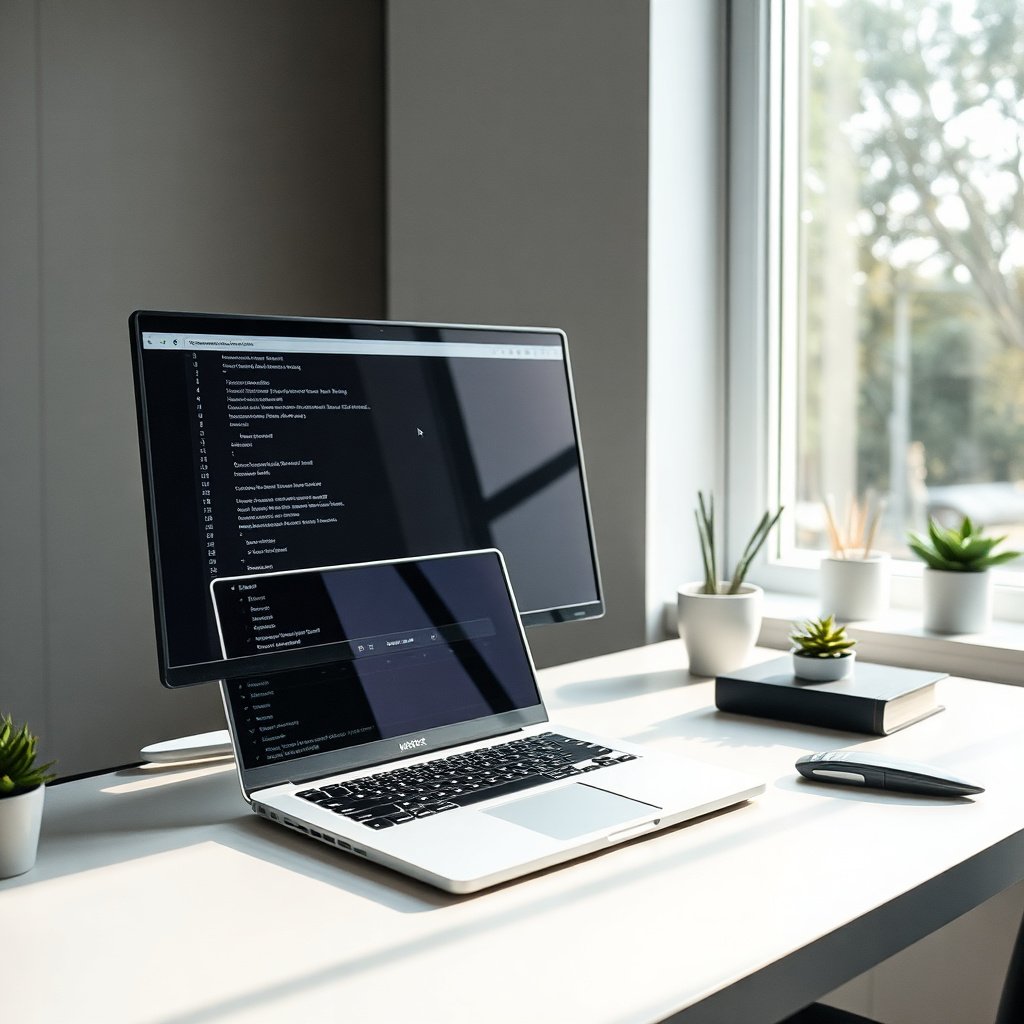
Cleaning your monitor often improves what you experience as performance—not the system’s actual FPS or input timing. When glare, haze, or grime reduce contrast and crispness, the interface can feel sluggish because your brain has to work harder to interpret what you’re seeing. For most people, that shows up as “stuttering,” “lag,” or difficulty reading fine UI elements, even though the computer is rendering normally.
Here’s how monitor cleanliness maps to “performance”:
– Dust, fingerprints, and smudges can make motion and fine details harder to see, which feels like lag or stuttering.
– Glare and hazy coatings can reduce contrast, making UI elements harder to read or distinguish.
– If the “problem” is visual clarity, cleaning can improve usability immediately (even though hardware performance won’t change).
In practical terms, a dirty monitor can mimic problems you’d normally associate with software or drivers. A washed-out status bar can look like it’s updating late; a smeared cursor can look like it’s “behind.” Cleaning your monitor is a fast way to remove that entire category of misdiagnosis.
Signs it’s likely a screen-cleaning issue
If your “performance problem” is actually a visibility problem, cleaning your monitor usually produces a noticeable improvement right away. The biggest clue is consistency: the screen looks wrong in certain lighting or at certain UI scales, and the same content becomes easier to read after wiping.
Look for these signs:
– Text looks fuzzy, gray, or “washed out,” even at the same brightness and resolution.
– You notice streaks or residue that appear worse in bright rooms or with certain backgrounds.
– Screen brightness/contrast changes don’t really solve it, but wiping the surface does (or you can see visible buildup).
What’s happening is mostly optical: smudges scatter light, and anti-glare coatings (common on business monitors) can trap oils that create a persistent haze. In my own day-to-day workstation maintenance, I’ve seen this most often when monitors are cleaned inconsistently—small oil films gradually build up, and then every minor lighting change makes the UI feel “hard to track.”
Also remember that eye strain can become the real bottleneck. The American Optometric Association estimates that computer vision syndrome affects 50% to 90% of people who spend extended time using computers (American Optometric Association). When contrast drops because the monitor is hazy, that strain can feel like performance loss.
Step-by-step: how to clean your monitor safely
Cleaning your monitor is most effective when you avoid liquids on the screen surface and keep pressure light. Follow a consistent, manufacturer-style process: power down, remove dust gently, then wipe with microfiber using a screen-safe method.
– Power off the monitor and unplug it (or switch off at the power source) before wiping; let it cool if it’s warm.
– Use a microfiber cloth and, if needed, a screen-safe cleaner applied to the cloth—not sprayed directly on the screen.
– Wipe gently with light pressure, using straight strokes first; then do a second pass with a dry microfiber to remove any remaining moisture.
Before you wipe, take 30 seconds to assess whether you’re dealing with dust or grease. If there’s loose dust, start with a dry microfiber pass or a gentle air blow so you don’t grind grit into the coating.
Important technical note (so you don’t damage coatings): Many modern displays have fragile anti-glare or anti-smudge layers. Those layers improve readability, but they can also be harmed by abrasive materials or improper solvents. Apple’s display-cleaning guidance, for example, recommends using a microfiber cloth and using a cleaning approach that won’t soak the screen; Apple specifically mentions 70% isopropyl alcohol for certain cleaning needs (Apple Support). Use this type of guidance as a model, even if you don’t own an Apple display.
Monitor Cleaning Tools: Safety-First Compatibility (General Best Practice)
| # | Tool / Material | Best for | How to apply | Damage risk |
|---|---|---|---|---|
| 1 | Microfiber cloth (screen-grade) | Smudges + fingerprints | Dry first; then lightly dampen if needed | ★★★★★ |
| 2 | Distilled water (optional) | Light haze | Apply to cloth (not the screen) | ★★★★☆ |
| 3 | Isopropyl alcohol ~70% (if manufacturer allows) | Oily residue | Use sparingly on cloth; wipe immediately | ★★★☆☆ |
| 4 | Pre-moistened screen wipes (screen-safe) | Routine cleaning | Wipe gently; follow with dry microfiber if streaks appear | ★★★★☆ |
| 5 | Compressed air (low pressure) | Loose dust | Short bursts; hold can upright | ★★★★★ |
| 6 | Soft antistatic brush | Dust on bezels/vents | Use before wiping; avoid brushing the panel | ★★★★☆ |
| 7 | Paper towels / tissues | None (avoid) | High lint + abrasion risk | ★☆☆☆☆ |
Avoid these cleaning mistakes
Cleaning your monitor will never fix underlying hardware issues, but the right technique can prevent damage that would create new problems (like permanent haze). A lot of “why did my screen look worse after cleaning?” stories come from preventable mistakes—especially applying liquids directly or using abrasive materials.
Avoid these cleaning mistakes:
– Don’t use paper towels, tissues, or abrasive cleaners that can scratch coatings or leave lint.
– Avoid spraying liquid directly onto the display, ports, or seams—moisture can seep inside.
– Don’t press hard on the panel; excessive force can worsen display artifacts.
Two extra pitfalls I see frequently in business environments:
1. Reusing a dirty cloth. If your microfiber has collected dust, grit, or residue from a different surface, you’ll smear it into the screen. For monitor cleaning, keep a dedicated cloth or use a fresh one each session.
2. Cleaning while the screen is hot. Heat changes how liquids behave on coatings and can encourage streaking. Power off and let the panel cool, then proceed.
What cleaning can’t fix (so you don’t waste time)
Cleaning your monitor is a quick first step, but it won’t resolve true system or panel faults. If the underlying problem is in the graphics pipeline, the display connection, or the panel electronics, wiping the screen won’t change the behavior you’re seeing.
Here’s what cleaning can’t fix:
– Hardware-related slowdowns (low FPS, delayed input, stuttering tied to games/videos) won’t be solved by wiping the screen.
– If you’re seeing true flicker, banding, artifacting, or color corruption, the cause may be cables, GPU settings, panel issues, or firmware.
– If you suspect electrical problems (burn-in anomalies, persistent flicker, unusual noises), stop at cleaning and move to proper troubleshooting—cleaning shouldn’t be your only step.
A helpful way to separate “visual lag” from “real lag” is to test responsiveness with content-independent signals: open a simple app like a text editor, move the caret quickly, and observe whether input delay exists. If input is instant but visuals are unclear, monitor cleanliness is a likely factor. If input delay is real, move on quickly to display settings and graphics drivers.
Also, ergonomics can amplify the issue. OSHA guidance often recommends positioning the monitor at about arm’s length (roughly 20–28 inches / 50–70 cm) for comfortable viewing (U.S. Occupational Safety and Health Administration (OSHA)). If glare or haze is present because of seating angle, cleaning helps—but the viewing setup matters too.
Quick checklist: decide in minutes whether cleaning is worth it
Cleaning your monitor is worth doing when the symptoms are primarily visual and change with lighting. If your “performance” complaints persist after a careful, safe wipe, don’t keep repeating monitor cleaning—use it as the initial triage step and move to deeper diagnostics.
– Is the screen visibly smudged, dusty, or streaky?
– Does improving the wipe/clean look like it improves clarity right away?
– Are the “problems” purely visual (blurry text, haze, glare) rather than system FPS/input lag?
– Do you need to troubleshoot further (cables, drivers, display settings) because behavior persists after a careful clean?
How to decide faster: if cleaning your monitor makes text immediately easier to read and reduces eye strain, you likely solved the root issue. If your problem is still “GPU-like” (low FPS, stutter tied to specific games, or input delay), cleaning isn’t the bottleneck—start checking refresh rate, cable seating, and GPU drivers instead.
For a quick contrast, use this rule of thumb:
- Cleaning likely helps
- Blurry/fuzzy text, washed-out UI, visible residue, glare that looks worse in bright rooms, and “lag” that disappears when you can see clearly.
- Cleaning unlikely helps
- Persistent flicker/banding, color corruption, performance drops measured in FPS, delayed input, or artifacts that correlate with specific hardware/software actions.
Frequently Asked Questions
Can cleaning my computer monitor really fix performance problems?
Cleaning your monitor usually won’t fix true computer performance issues like slow processing, low FPS, or app lag, because those are caused by the PC’s hardware and software. However, a dirty screen can make everything look worse—blurry text, poor contrast, glare, and reduced visibility—which people often mistake for performance problems. By improving screen clarity and reducing glare, your monitor may feel “snappier” and easier to use, even though the underlying system speed hasn’t changed.
How do I clean my monitor without harming the display or affecting responsiveness?
Power off the monitor, unplug it if possible, and use a microfiber cloth designed for screens. Lightly apply monitor-safe cleaner to the cloth (never spray directly onto the screen) and wipe gently with minimal pressure. Avoid ammonia, alcohol-based solvents (unless the manufacturer explicitly says they’re safe), and don’t use paper towels—these can damage coatings and worsen clarity over time. After cleaning, allow the screen to dry fully before turning it back on.
Why does a dirty monitor make my computer seem slower or less responsive?
When dust, smudges, or fingerprints build up, they scatter light and reduce contrast, making text and UI elements harder to read. That can increase the time you spend focusing, clicking, or rechecking details, which feels like poor performance. If you also notice haze or reflections (especially under bright lighting), you may interpret the display as “laggy” even when mouse and keyboard input are normal.
What’s the best way to clean a monitor if I’m seeing blurry text or screen haze?
Start with a dry microfiber pass to remove loose dust, then use a monitor-safe solution sparingly on the cloth for smudges. If there’s persistent haze, check whether it’s surface grime versus damage to the screen coating; gentle cleaning typically improves smearing but won’t repair scratched or permanently degraded coatings. For stubborn spots, follow the manufacturer’s cleaning instructions closely, since different screen types (LCD, LED, OLED, matte coatings) may require specific products or techniques.
Which performance issues should I troubleshoot instead of cleaning the monitor?
If your issue is actual computer slowdown—stuttering video, slow boot times, freezing, high CPU/GPU usage, or lag during gaming—cleaning the monitor won’t help. Those problems usually come from software processes, insufficient storage, outdated drivers, overheating, malware, or hardware bottlenecks. For best results, pair monitor cleaning (to improve visibility) with practical PC troubleshooting like updating graphics drivers, checking task manager performance, running malware scans, and ensuring proper ventilation and system health.
📅 Last Updated: November 22, 2026 | Topic: Can Cleaning Your Computer Monitor Fix Performance Problems? | Content verified for accuracy and freshness.
References
- How storage capacity is measured on Apple devices – Apple Support
- https://www.cdc.gov/coronavirus/2019-ncov/community/clean-disinfect/electronics.html
- Liquid-crystal display
- Thermal design power
- Overheating
- Computer fan
- https://www.britannica.com/technology/liquid-crystal-display
- https://scholar.google.com/scholar?q=cleaning+lcd+screen+safe+methods Google Scholar
- https://scholar.google.com/scholar?q=dust+computer+cooling+performance+throttling Google Scholar
- https://scholar.google.com/scholar?q=monitor+cleaning+does+not+improve+computer+performance Google Scholar